Laptop ka touchpad kaam na karna ek common problem hai, lekin jab cursor move nahi karta ya click response nahi deta, tab kaafi frustration hoti hai. Agar aapka laptop touchpad not working issue aa raha hai, to ghabrane ki zarurat nahi hai. Is detailed guide me hum is problem ke sabhi possible reasons aur unke practical solutions step-by-step samjhenge.
Yeh article beginners aur advanced users dono ke liye helpful rahega.
Touchpad Kaam Kyu Nahi Kar Raha?
Sabse pehle ye samajhna zaruri hai ki problem software ki hai ya hardware ki. Common reasons ye ho sakte hain:
- Touchpad accidentally disable ho jana
- Function key se off ho jana
- Driver issue
- Windows update problem
- External mouse conflict
- BIOS setting change
- Hardware damage
Ab in sabhi ko detail me samjhte hain.
1. Check Karein – Touchpad Disable To Nahi?
Kabhi-kabhi galti se touchpad disable ho jata hai.
Kaise Check Karein?
Windows 10 / 11 Me:
- Settings open karein
- Devices / Bluetooth & Devices par jayein
- Touchpad option select karein
- Ensure karein ki toggle ON ho
Agar OFF hai to simply ON kar dein.
2. Function Key Se Enable Karein
Zyada tar laptops me touchpad ko enable/disable karne ke liye shortcut hota hai.
Example:
- Fn + F5
- Fn + F6
- Fn + F7
- Ya koi key jisme touchpad ka icon bana ho
Fn key ke saath us key ko press karein. Cursor wapas chalne lag sakta hai.
3. Laptop Restart Karein
Simple restart kai baar temporary glitch ko fix kar deta hai.
Steps:
- Start Menu → Restart
Restart ke baad check karein touchpad kaam kar raha hai ya nahi.
4. External Mouse Disconnect Karein
Kabhi-kabhi jab USB mouse connect hota hai to system automatically touchpad disable kar deta hai.
Solution:
- USB mouse unplug karein
- Settings me “Leave touchpad on when mouse is connected” option check karein
Is setting ko enable karein.
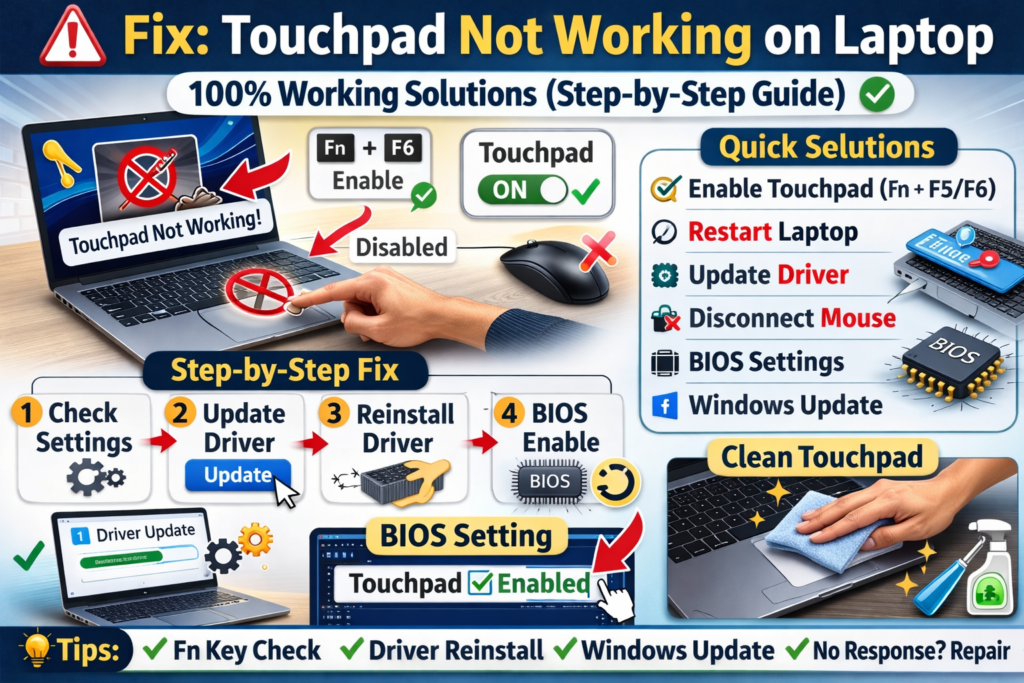
5. Touchpad Driver Update Karein
Driver issue sabse common reason hota hai.
Driver Update Karne Ka Tarika:
- Windows + X press karein
- Device Manager open karein
- “Mice and other pointing devices” expand karein
- Touchpad driver par right-click karein
- Update driver select karein
“Search automatically for drivers” choose karein.
Agar update available hoga to install ho jayega.
6. Driver Reinstall Karein
Agar update se problem solve nahi hoti to driver reinstall karein.
Steps:
- Device Manager open karein
- Touchpad driver par right-click
- Uninstall device select karein
- Laptop restart karein
Restart ke baad Windows automatically driver reinstall kar dega.
7. Windows Update Check Karein
Kabhi-kabhi outdated Windows version ki wajah se touchpad issue aata hai.
Update Karne Ka Tarika:
- Settings open karein
- Windows Update par click karein
- “Check for updates” select karein
Latest update install karein aur system restart karein.
8. BIOS Me Touchpad Enable Karein
Agar touchpad BIOS se disable hai to Windows me enable nahi hoga.
BIOS Check Karne Ka Tarika:
- Laptop restart karein
- Boot hote waqt F2 / Delete / F10 press karein
- BIOS menu me “Internal Pointing Device” ya “Touchpad” option search karein
- Ensure karein ki Enabled ho
Save karke exit karein.
9. Touchpad Settings Reset Karein
Windows 11 me advanced touchpad settings available hoti hain.
Steps:
- Settings → Bluetooth & Devices → Touchpad
- Scroll down karke Reset option check karein
Reset karne se configuration problem solve ho sakti hai.
10. Clean Touchpad Surface
Kabhi-kabhi dust ya oil ki wajah se touch response nahi deta.
Kya Karein?
- Laptop band karein
- Soft microfiber cloth se clean karein
- Thoda sa screen cleaner use kar sakte hain
Zyada pani ya liquid directly mat daalein.
11. Safe Mode Me Check Karein
Safe Mode se pata chalega ki problem software ki hai ya nahi.
Safe Mode Kaise Open Karein:
- Shift key hold karke Restart karein
- Troubleshoot → Advanced Options
- Startup Settings → Restart
- Safe Mode select karein
Agar Safe Mode me touchpad kaam kare, to third-party software problem create kar raha hai.
12. Check For Physical Damage
Agar:
- Touchpad click sound nahi aa raha
- Cursor bilkul move nahi kar raha
- Laptop gira tha
To hardware damage ho sakta hai.
Is case me service center jana best option hai.
13. System Restore Use Karein
Agar touchpad pehle kaam kar raha tha aur achanak band ho gaya:
Steps:
- Search bar me “System Restore” type karein
- Restore point select karein (jab touchpad working tha)
- Restore process complete karein
Ye system ko previous working state me le aayega.
14. Factory Reset (Last Option)
Agar sab solutions try kar liye aur issue fix nahi hua to:
⚠️ Pehle data backup zarur lein.
Reset Steps:
- Settings → Recovery
- Reset this PC
- Keep my files option choose karein
Ye software related problems fix kar sakta hai.
Common Laptop Brands Ke Specific Tips
HP Laptop
- HP Support Assistant se driver update karein
Dell Laptop
- Dell official website se touchpad driver download karein
Lenovo
- Lenovo Vantage app use karein
ASUS
- ATK driver install karein
Har brand ka official driver use karna best hota hai.
Kab Service Center Jana Chahiye?
Agar:
- Touchpad physically crack ho
- Water damage hua ho
- Driver reinstall ke baad bhi detect nahi ho raha
- BIOS me option hi nahi dikh raha
To hardware issue ho sakta hai.
Frequently Asked Questions (FAQs)
Q1: Kya external mouse se permanently kaam chal sakta hai?
Haan, lekin long-term ke liye touchpad repair better hai.
Q2: Driver kaise pata chalega kaunsa install karna hai?
Laptop model number official website par search karein.
Q3: Windows update ke baad touchpad band ho gaya, kya karein?
Driver rollback option use karein.
Device Manager → Driver → Roll Back Driver
Final Conclusion
Touchpad not working problem zyada tar software ya driver issue ki wajah se hoti hai. Sabse pehle basic checks karein — touchpad enable hai ya nahi, function key use karein, restart karein. Uske baad driver update ya reinstall karein.
Agar phir bhi problem solve nahi hoti to BIOS settings aur hardware condition check karein.
Most cases me problem:
- Disabled touchpad
- Driver error
- Windows update bug
ki wajah se hoti hai.
Agar aap mujhe batayein:
- Laptop ka brand aur model kya hai?
- Windows 10 hai ya 11?
- Kya external mouse kaam kar raha hai?
To main aapko aur exact solution bata sakta hoon.