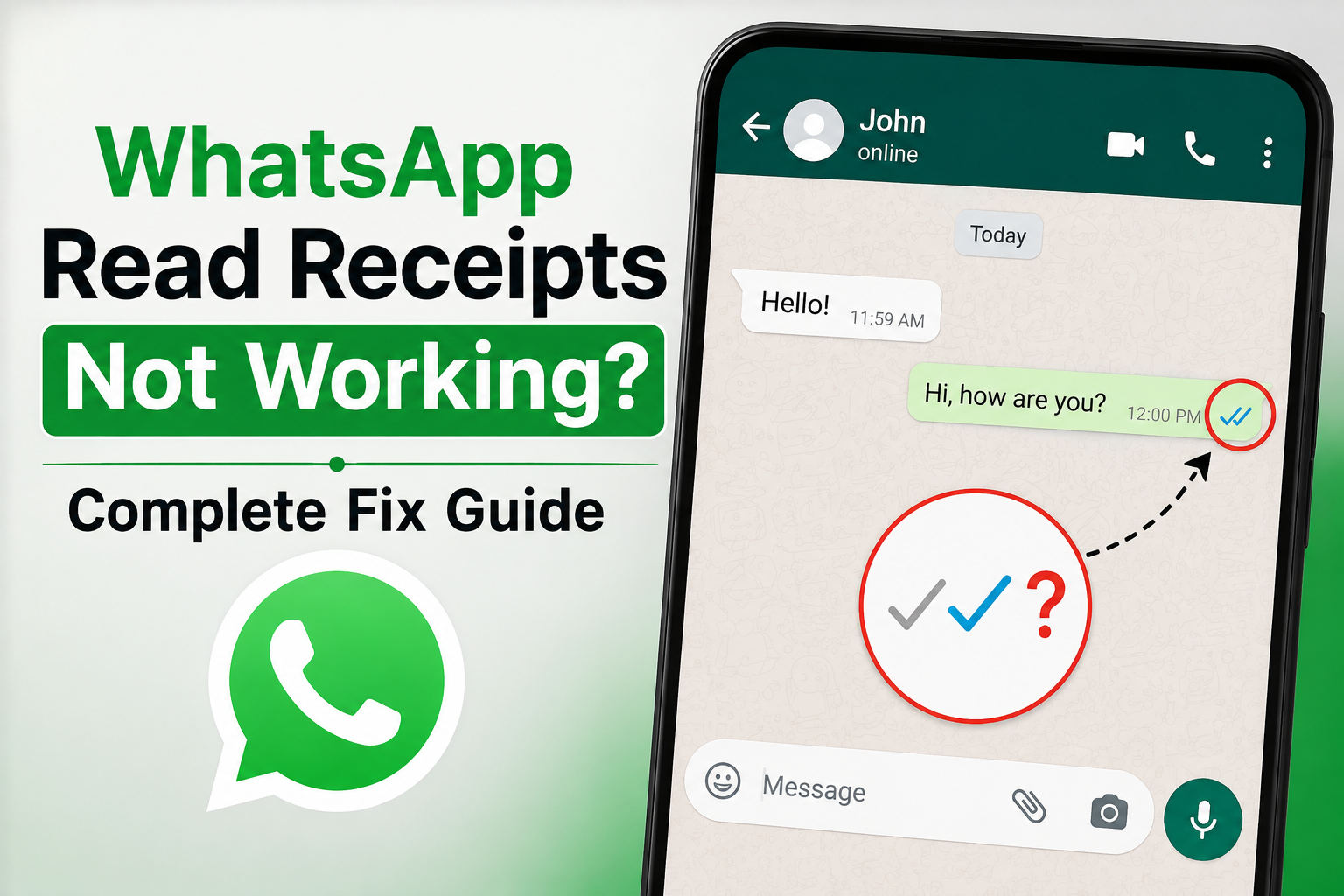
WhatsApp is one of the most popular messaging apps, and I personally find its read receipt feature very useful in everyday conversations. The blue ticks make it easy to know whether someone has actually opened and read a message. However, sometimes WhatsApp read receipts stop working, and the usual blue ticks do not appear even when you believe the other person has read your message.
This can be confusing because you may start wondering whether there is something wrong with your phone, your WhatsApp account, or the other person’s settings. In many cases, the problem is not serious and can be fixed with a few simple checks.
In this guide, I will explain why WhatsApp read receipts may not be working and what you can do to fix the problem. These are practical solutions that I would personally try before considering more complicated options.
What Are WhatsApp Read Receipts?
Before fixing the problem, it is important to understand what WhatsApp read receipts actually mean.
When you send a WhatsApp message, you normally see different check marks. One gray check means the message has been sent successfully. Two gray checks generally mean the message has been delivered to the recipient’s device. When the two checks turn blue, it usually means the recipient has opened and read the message.
The blue ticks are called read receipts. WhatsApp also allows users to control this feature through their privacy settings. Because of this, blue ticks may not always appear even when a message has been opened.
Why Are WhatsApp Read Receipts Not Working?
There can be several reasons why WhatsApp read receipts are not appearing. The most common reason is that read receipts have been disabled in the privacy settings.
Another possibility is that the person you are messaging has turned off their own read receipts. WhatsApp also has some privacy related limitations where read receipts behave differently in certain types of conversations.
Internet connectivity can also cause temporary synchronization problems. If WhatsApp is not properly connected to the internet, message delivery and read status updates may take longer than usual.
An outdated version of WhatsApp can also create unexpected problems. I always recommend keeping WhatsApp updated because updates often include bug fixes and improvements.
Your phone’s background activity restrictions may also affect WhatsApp. If your device prevents WhatsApp from running properly in the background, notifications and message status updates can sometimes be delayed.
Check Your WhatsApp Privacy Settings
The first thing I recommend checking is the read receipt setting.
Open WhatsApp and go to Settings. Then open Privacy and look for the Read receipts option. Make sure it is enabled.
If read receipts are disabled on your account, you will not be able to send read receipt information to other people in supported individual chats. This setting can easily be changed by accident, especially after changing privacy preferences.
Once you enable read receipts, close WhatsApp completely and open it again. Then send a new message to someone you trust and ask them to open it. Check whether the two gray ticks change to blue.
Keep in mind that changing this setting does not necessarily make old messages suddenly display a new read status. It is better to test the feature with a new message.
Ask the Other Person to Check Their Settings
If your own read receipts are enabled but you still cannot see blue ticks from another person, the problem may be on their side.
Read receipts work between users, so the other person’s privacy settings can affect what you see. If that person has disabled read receipts, you may continue seeing two gray ticks even after they have opened your message.
This is why I would not immediately assume that WhatsApp is broken.
If you are comfortable asking the person, simply ask them to check their WhatsApp privacy settings. They can open WhatsApp Settings, go to Privacy, and check the Read receipts option.
There can also be situations where someone has read a message from a notification without opening the conversation normally. Depending on the circumstances, this does not always give you the result you expect from the read receipt system.
Check Your Internet Connection
A weak or unstable internet connection can cause WhatsApp status information to update slowly.
Try opening another website or application that requires internet access. If other apps are also having connection problems, your internet connection may be the real cause.
You can switch between WiFi and mobile data to test the connection. If you are using WiFi, disconnect and reconnect to the network. If you are using mobile data, temporarily turn WiFi off and see whether WhatsApp works normally.
After restoring the connection, open WhatsApp and wait for a few seconds. Then check the message again.
Sometimes the problem fixes itself once WhatsApp successfully reconnects to its servers.
Restart Your Phone
This may sound like a basic solution, but restarting your phone can solve many temporary software problems.
When your phone runs for a long time, background processes can sometimes stop responding correctly. WhatsApp may also experience a temporary issue with notifications, network communication, or background activity.
Close WhatsApp and restart your phone. Once the device starts again, open WhatsApp and check your messages.
I usually recommend trying this before changing complicated settings because it is quick, safe, and does not remove your conversations or account information.
Update WhatsApp to the Latest Version
Another important step is checking whether your WhatsApp application is up to date.
Open the Google Play Store on Android or the App Store on iPhone and search for WhatsApp. If an update is available, install it.
Using an older version of WhatsApp can sometimes cause features to behave differently from the current version. Developers regularly release updates to improve performance and fix known issues.
After updating WhatsApp, restart the application and test the read receipts again.
I also recommend avoiding unofficial modified versions of WhatsApp. These applications can create compatibility and security problems and may not behave like the official WhatsApp application.
Clear WhatsApp Cache on Android
If you are using Android, clearing the WhatsApp cache may help with temporary application problems.
Go to your phone’s Settings, open Apps, find WhatsApp, and select Storage or Storage and cache. You should see an option to clear the cache.
Clearing the cache normally removes temporary files rather than your WhatsApp conversations.
Be careful not to select an option that deletes application data unless you understand exactly what it will do. If you are unsure, simply clear the cache and restart WhatsApp.
This solution is particularly useful when WhatsApp is behaving strangely, loading slowly, or failing to update information correctly.
Check Background Data and Battery Restrictions
Modern Android phones can be aggressive about saving battery. Sometimes they restrict applications from running in the background.
Open your phone’s app settings and select WhatsApp. Check the battery and mobile data settings. Make sure WhatsApp is allowed to use background data and is not heavily restricted by battery saving features.
The exact menu names can be different depending on your phone manufacturer and Android version.
If WhatsApp cannot communicate properly while running in the background, message notifications and status information may be delayed.
On iPhone, check the relevant background app and notification settings and make sure WhatsApp has the permissions it needs.
Check Whether WhatsApp Is Experiencing an Outage
Sometimes the problem has nothing to do with your phone.
WhatsApp is an online service, and temporary server problems can affect messaging features. If many users are reporting that WhatsApp is not working correctly, it may be a service issue rather than an individual account problem.
You can check whether other WhatsApp features are working. Try sending a message, receiving a message, making a voice call, or loading recent conversations.
If several WhatsApp features are failing at the same time, waiting may be the best solution. There is not much you can change on your phone if the service itself is experiencing a temporary problem.
Check Read Receipts in Group Chats
WhatsApp read receipts can work differently in group conversations compared with individual chats.
If you are testing read receipts in a group, do not assume that the behavior will be exactly the same as a private conversation. Group messages have their own delivery and read information.
For example, WhatsApp can show additional information about who has received and read a particular message. You can usually access this information by selecting your sent message and checking its message information.
This can be more useful than simply looking at the check marks.
Try WhatsApp Web or Another Device
If you believe the problem is connected to your phone, try accessing your WhatsApp account through a linked device or WhatsApp Web.
If WhatsApp works normally elsewhere, the problem may be related to the application installation or settings on your main phone.
This can help narrow down the cause without immediately deleting or reinstalling anything.
Reinstall WhatsApp as a Last Resort
If nothing else works, reinstalling WhatsApp can sometimes solve persistent application problems.
Before uninstalling WhatsApp, make sure your chats are backed up properly. Open WhatsApp settings and check your chat backup information.
After confirming your backup, uninstall WhatsApp, install the official application again, and sign in with your phone number. Follow the restoration process if a backup is available.
I would keep this option for last because most read receipt problems can usually be resolved without reinstalling the application.
Final Thoughts
WhatsApp read receipts not working can be frustrating, especially when you are waiting for an important reply. However, the issue does not always mean that WhatsApp is broken.
Start by checking your read receipt privacy setting and remember that the other person’s settings can also affect what you see. Then check your internet connection, restart your phone, update WhatsApp, and review background activity restrictions.
If you use Android, clearing the WhatsApp cache can also help with temporary problems. For persistent issues, testing WhatsApp on another device can help identify whether the problem is with your phone or your account.
In my experience, the best approach is to work through these solutions one by one instead of changing everything at once. That makes it much easier to identify the actual cause.
Most importantly, do not assume that someone has ignored your message simply because the blue ticks are missing. Privacy settings, connectivity problems, application issues, and WhatsApp’s own behavior can all affect read receipts. A missing blue tick is not always proof that a message has not been read.