If WhatsApp is taking too much storage on Android, you are not alone. I have seen this happen even on phones that have plenty of free space when WhatsApp is first installed. After months or years of using the app, thousands of photos, videos, voice messages, documents, stickers, and other media files can quietly take up several gigabytes.
The frustrating part is that many people do not realize how much space WhatsApp is using until Android starts showing a low storage warning. Once the phone becomes full, other apps can also become slower, updates may fail, and taking new photos or videos can become difficult.
In my experience, the best way to solve this problem is not to delete everything from WhatsApp. Instead, you should first find out exactly what is using the most space and then remove unnecessary files carefully.
In this guide, I will explain how to reduce WhatsApp storage on Android without accidentally deleting important conversations or media.
Why Is WhatsApp Taking So Much Storage?
WhatsApp can use a lot of storage because it handles much more than text messages.
Every photo, video, GIF, document, voice message, and other media file can occupy space on your phone. If you receive the same type of content regularly, the storage can increase quickly.
Videos are usually the biggest problem because a single high quality video can take much more space than hundreds of text messages.
WhatsApp can also keep downloaded media files even when you have forgotten about them. Group chats are particularly common storage problems because large numbers of people can continuously share photos, videos, documents, and other files.
The first step is therefore to identify where the storage is going.
Check WhatsApp Storage Usage
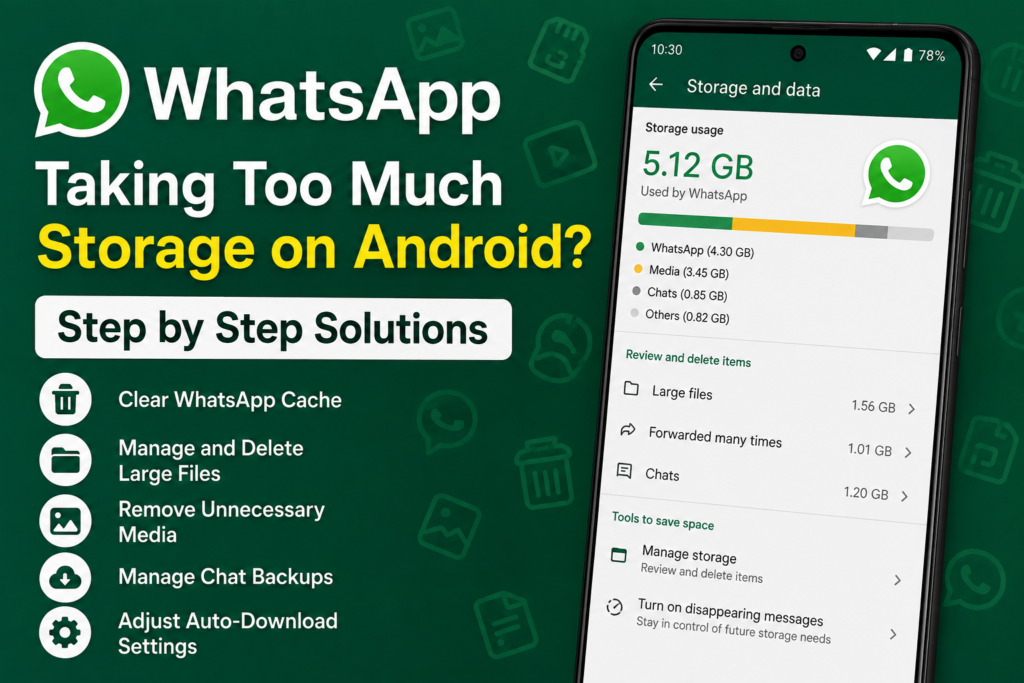
WhatsApp has built in storage management tools that make this much easier.
Open WhatsApp and go to Settings.
Select Storage and data, then open Manage storage.
Depending on your WhatsApp version, you may see information about the amount of storage being used along with categories or lists of chats and media.
Look for large files and chats that are consuming significant amounts of space.
This is where I recommend spending a few minutes before deleting anything.
Instead of randomly removing photos from your gallery, use WhatsApp’s storage management tools to identify the files that are actually responsible for the problem.
Delete Large WhatsApp Videos
Large videos are often the biggest reason WhatsApp takes too much storage on Android.
Open WhatsApp’s storage management section and review the largest files.
You may discover old videos that you no longer need. These can include forwarded clips, duplicate videos, old status videos, or large files shared in group chats.
Select the files you are certain you do not need and delete them.
Be careful with personal videos and important documents. Once you delete a file from the device, you may not be able to recover it easily.
I recommend reviewing the files individually instead of selecting everything at once.
Remove Unnecessary Photos
Photos may not be as large as videos individually, but hundreds or thousands of pictures can eventually consume a considerable amount of space.
Look through WhatsApp conversations and identify images that have little value.
Memes, duplicate pictures, screenshots, forwarded images, and old promotional content are often safe candidates for deletion.
If you want to keep an important photo, save it somewhere else before removing it from WhatsApp.
You can copy important pictures to another storage location or another device before cleaning WhatsApp.
Check Large Group Chats
Group chats can silently consume a huge amount of storage.
A busy family group, work group, school group, or community group can receive dozens or even hundreds of media files every week.
Open the WhatsApp storage management section and check which conversations are using the most space.
You may find that one or two groups are responsible for a large percentage of your WhatsApp storage.
Review the media from those conversations and remove files you no longer need.
You do not necessarily have to leave the group. Cleaning its old media can be enough to recover a significant amount of storage.
Clear WhatsApp Cache on Android
Android applications create temporary cache files to improve performance.
Sometimes the WhatsApp cache can become relatively large.
To check it, open your Android Settings, go to Apps, select WhatsApp, and open Storage or Storage and cache.
You should see an option to clear the cache.
Clearing the cache removes temporary files and normally does not delete your WhatsApp chats or personal media.
Be careful not to select Clear storage or Clear data unless you understand the consequences. Those options are different from clearing the cache and can remove local application data.
For a basic storage cleanup, clearing the cache is the safer choice.
Stop Automatic Media Downloads
One of the best long term solutions is to prevent WhatsApp from automatically downloading every photo and video.
Open WhatsApp and go to:
Settings > Storage and data
Look for the Media auto download settings.
You can control when photos, videos, audio, and documents are automatically downloaded.
If you belong to several busy groups, I recommend being more selective with automatic downloads.
For example, you may want photos to download when you are connected to WiFi but prevent videos or documents from automatically downloading.
This gives you more control over what gets stored on your phone.
Turn Off Automatic Saving to the Gallery
WhatsApp can also save downloaded media to your phone’s gallery.
If you do not want every WhatsApp picture appearing in your main photo collection, you can adjust the media visibility settings available in WhatsApp.
This will not necessarily remove existing files, but it can make managing future media easier.
It also helps prevent your regular gallery from becoming filled with forwarded pictures and videos that you did not intentionally save.
Review Forwarded Media
Forwarded media can become a major storage problem, especially in large group conversations.
People often forward the same videos, images, and documents multiple times.
Open your WhatsApp storage management section and look for large or frequently shared files.
Ask yourself whether you actually need each item.
If the answer is no, delete it.
You may be surprised by how much storage can be recovered simply by removing old forwarded content.
Delete Unused Documents
Photos and videos are not the only files that consume WhatsApp storage.
Documents can also become surprisingly large.
WhatsApp may contain PDFs, presentations, spreadsheets, ZIP files, and other documents that you downloaded months or years ago.
Review your documents and remove anything you no longer need.
Before deleting a work document, receipt, certificate, or other important file, make sure you have another copy somewhere safe.
This is particularly important because some files may be difficult to obtain again.
Manage WhatsApp Backups Carefully
WhatsApp backups can also become large, especially when they include videos.
If you use Google Drive for WhatsApp backups, review your backup settings and decide whether you need videos included.
Open WhatsApp and go to Settings > Chats > Chat backup.
Check the backup settings available on your device.
If your backup contains a large amount of video content, excluding videos can significantly reduce future backup sizes.
Keep in mind that a cloud backup and the WhatsApp storage displayed on your Android phone are not exactly the same thing. Cleaning one does not automatically remove everything from the other.
Avoid Deleting Important Chats
When trying to free up WhatsApp storage, it can be tempting to delete entire conversations.
I recommend avoiding this unless you are completely sure you no longer need them.
A conversation may contain important information, addresses, photos, documents, or messages that you might want later.
Instead of deleting an entire chat, first review its media and remove only unnecessary files.
This gives you much more control over your storage cleanup.
Check Your Android Storage After Cleaning
Once you have removed unnecessary WhatsApp files, open Android’s storage settings again.
Check how much free space you now have.
If WhatsApp was using several gigabytes, you should notice a difference after removing large media files.
If the storage has barely changed, look at other categories on your phone.
Sometimes WhatsApp is blamed for low storage even though videos, downloads, games, or other applications are actually using most of the available space.
Keep Some Free Storage Available
It is not a good idea to use almost every gigabyte of your phone’s storage.
Android and your applications need some free space to operate normally.
Try to maintain a reasonable amount of available storage instead of waiting until the phone displays a critical storage warning.
Regularly cleaning unnecessary WhatsApp media is much easier than trying to remove several gigabytes of files when your phone is already full.
Make WhatsApp Storage Cleanup a Routine
You do not need to perform a massive cleanup every few years.
A quick monthly or quarterly review can prevent WhatsApp from becoming a storage problem.
Open the WhatsApp storage management section and check the largest files.
Delete old videos, duplicate pictures, unnecessary documents, and forwarded content.
This small habit can keep your phone’s storage under control.
What Not to Delete
While cleaning WhatsApp, be careful with files that are important to you.
Do not delete family photos, work documents, receipts, travel information, personal videos, or other valuable media without making sure you have another copy.
Also avoid clearing WhatsApp application data simply because you want to free up space.
Clearing cache is very different from clearing app data.
If you are unsure about a particular option, stop and check what it does before confirming the deletion.
Final Thoughts
When WhatsApp is taking too much storage on Android, the problem is usually caused by years of accumulated media rather than the basic WhatsApp application itself.
Videos, photos, documents, forwarded files, and busy group chats can quickly consume several gigabytes. The good news is that WhatsApp provides useful tools for finding and removing the files responsible for the problem.
I recommend starting with WhatsApp Settings, Storage and data, and Manage storage. Look at the largest files and the conversations using the most space. Remove unnecessary videos first because they usually provide the biggest storage savings.
After that, review photos, documents, forwarded media, and old group content. You can also clear the WhatsApp cache from Android settings and adjust automatic media download settings to prevent the problem from returning.
The most important thing is to clean WhatsApp carefully. Do not delete everything just to free up space. Take a few minutes to review important files and keep another copy of anything you may need later.
With regular cleanup and better media download settings, you can keep WhatsApp storage under control on Android and avoid those frustrating low storage warnings in the future.