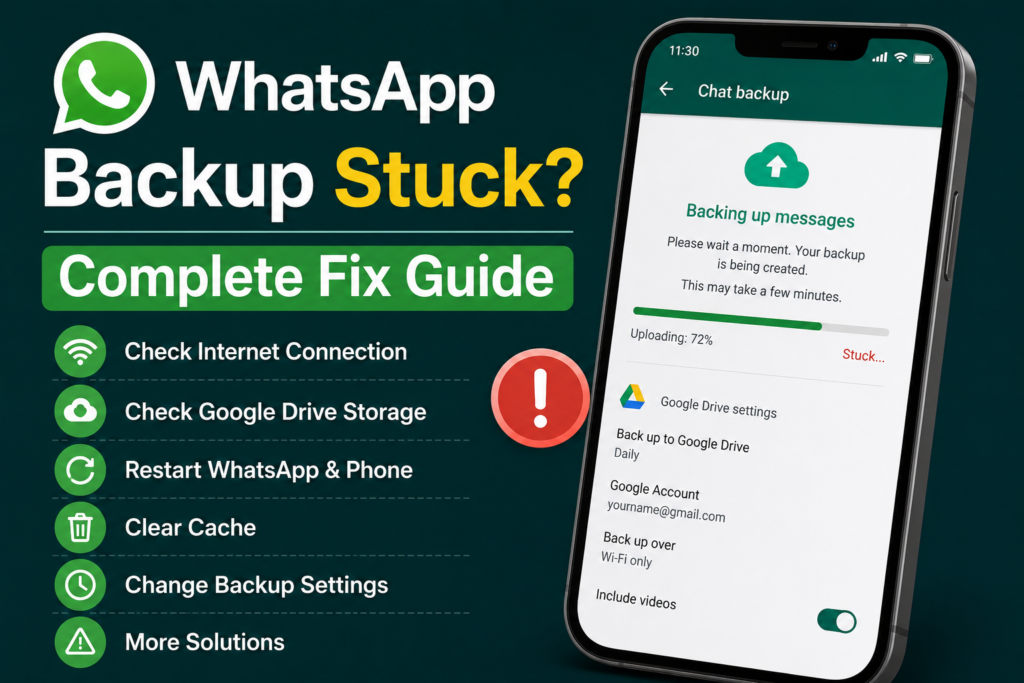
WhatsApp backup is one of those features that most of us do not think about until it stops working. I personally consider regular WhatsApp backup very important because chats can contain years of conversations, important photos, videos, documents, and other memories. When the backup gets stuck at a certain percentage or keeps showing that it is preparing a backup, it can become frustrating.
Sometimes WhatsApp backup remains stuck at 0 percent. In other cases, it may reach 50 percent, 70 percent, or even 99 percent and then stop. The problem can happen on Android or iPhone, although the exact backup process can be different depending on the device.
From my experience, WhatsApp backup problems are often caused by a weak internet connection, insufficient cloud storage, large media files, outdated applications, battery restrictions, or incorrect account settings.
In this guide, I will explain how to fix WhatsApp backup stuck problems step by step. I recommend starting with the simple solutions before moving toward more advanced methods.
Check Your Internet Connection
The first thing I check when WhatsApp backup is stuck is the internet connection.
A WhatsApp backup can contain a large amount of data, especially if your chats include many videos and photos. A weak or unstable connection can interrupt the upload and make the backup appear frozen.
If you are using WiFi, make sure your phone has a strong connection. You can open a browser and visit a few websites to confirm that the internet is working properly.
If possible, move closer to your router or restart the router. You can also try another reliable WiFi network.
I usually recommend using WiFi for large WhatsApp backups because uploading a lot of media through mobile data can consume a significant amount of data.
Restart WhatsApp
Sometimes the backup process becomes temporarily stuck because WhatsApp itself has encountered a small software problem.
Close WhatsApp completely and open it again. Then go to the backup settings and try starting the backup manually.
On Android, make sure WhatsApp is not still running in the background before reopening it. On iPhone, close the application from the recent apps screen and launch it again.
This simple step can refresh the backup process without changing any important settings.
Restart Your Phone
If restarting WhatsApp does not help, restart your phone.
A phone restart can clear temporary system problems and refresh network connections. It can also stop background processes that may be interfering with WhatsApp.
After restarting your device, connect to a stable WiFi network and try the backup again.
I recommend doing this before changing complicated settings because it takes only a minute and can sometimes solve the problem immediately.
Check Your Cloud Storage
One of the most common reasons for WhatsApp backup problems is insufficient cloud storage.
On Android, WhatsApp backups can use Google Drive storage. If your Google account does not have enough available space, the backup may fail or remain incomplete.
Check your Google account storage and see how much space is available.
If you have too many large files stored in Google Drive, Gmail, or Google Photos, you may need to free some space.
On iPhone, WhatsApp backup uses iCloud. Check your available iCloud storage and make sure there is enough room for the backup.
This is one of the first things I would check if a WhatsApp backup repeatedly stops near the end.
Reduce the Backup Size
If your WhatsApp backup is extremely large, reducing its size can make the process easier.
Videos are usually responsible for a significant part of a WhatsApp backup. If you do not need every video included in the backup, you can disable the option to include videos in your backup settings.
This can dramatically reduce the amount of data that needs to be uploaded.
You can also review your WhatsApp conversations and remove unnecessary large files.
I recommend keeping important photos and videos somewhere safe before deleting anything from WhatsApp.
Check Your Google Account on Android
If you are using Android, make sure the correct Google account is connected to WhatsApp.
Open WhatsApp settings and go to the chat backup section. Check the Google account selected for your backup.
If the wrong account is selected, the backup may not behave as expected.
Make sure you are signed into the Google account that you actually want to use for your WhatsApp backup.
Also check whether Google Drive is working correctly by opening the Drive application or website and confirming that your account is accessible.
Check Your Apple ID and iCloud on iPhone
On iPhone, WhatsApp backup depends on iCloud.
Make sure you are signed into the correct Apple account and that iCloud Drive is enabled.
You should also check whether WhatsApp has permission to use iCloud.
Open your iPhone settings and review the iCloud settings related to WhatsApp.
If iCloud storage is full, remove unnecessary files or upgrade your storage if needed.
After checking these settings, return to WhatsApp and try creating the backup again.
Update WhatsApp
An outdated version of WhatsApp can sometimes cause backup problems.
Open the Google Play Store on Android or the App Store on iPhone and search for WhatsApp.
If an update is available, install it.
Application updates can include fixes for backup problems and compatibility issues. Keeping WhatsApp updated is therefore important even if the application appears to be working normally.
After updating WhatsApp, restart your phone and try the backup again.
Clear WhatsApp Cache on Android
Android users can also try clearing the WhatsApp cache.
WhatsApp stores temporary files that help the application work faster. Sometimes these temporary files can become corrupted or cause unusual behavior.
Open Android settings and go to Apps. Find WhatsApp and open its storage settings.
Choose the option to clear the cache.
Be careful not to choose an option that deletes WhatsApp application data unless you understand what it does. Clearing the cache is the safer troubleshooting method.
After clearing the cache, open WhatsApp and start the backup again.
Disable Battery Restrictions
Some Android phones use aggressive battery saving features to stop applications from running in the background.
This can interfere with large WhatsApp backups because the backup may need to continue for a long time.
Open your phone’s battery settings and look for WhatsApp.
If WhatsApp is restricted heavily in the background, change the setting so that the application can operate normally.
The exact options depend on your phone manufacturer and Android version.
If the backup works after changing the battery settings, you have probably found the cause.
Keep WhatsApp Open During Backup
If your phone frequently stops background applications, keeping WhatsApp open while creating the backup can sometimes help.
Connect the phone to a charger and use a stable WiFi connection.
Open WhatsApp and start the backup manually. Avoid closing the application until the process has finished.
This can be especially useful when creating a large backup for the first time.
Check Your Phone Storage
Cloud storage is not the only storage that matters.
Your phone also needs enough free space to process temporary backup information.
If your device is almost full, applications may start behaving unexpectedly.
Check your phone storage and remove unnecessary downloads, duplicate files, old videos, or applications that you no longer use.
After freeing some space, restart the phone and try the WhatsApp backup again.
Check Date and Time
Incorrect date and time settings can occasionally cause problems with online services.
I recommend setting your phone to automatic date and time.
On Android, open the Date and time settings and enable the automatic options.
On iPhone, open Settings, select General, and then Date and Time. Make sure automatic settings are enabled when available.
Once the time is corrected, restart WhatsApp and try the backup again.
Try a Smaller Backup
If the backup keeps getting stuck, try reducing the amount of data first.
The easiest approach is usually to exclude videos from the backup.
If the smaller backup completes successfully, the problem may have been caused by the size of the original backup or by a large media file.
You can then decide which important media files you want to keep separately.
Reinstall WhatsApp as a Last Resort
Reinstalling WhatsApp should be considered a last resort because your chats are important.
Before uninstalling WhatsApp, make sure you have a usable backup or another safe copy of important conversations and media.
If you cannot create a backup, do not immediately uninstall the application simply because the backup is stuck.
First try the other solutions in this guide.
If you eventually decide to reinstall WhatsApp, make sure you understand the available backup and restoration options before removing the application.
What If WhatsApp Backup Is Still Stuck?
If WhatsApp backup continues to get stuck after trying all these methods, pay attention to exactly where it stops.
If it stops at the beginning, the problem may be related to your internet connection, account, or backup settings.
If it gets almost to the end and then stops, insufficient cloud storage or a large media file may be responsible.
Testing a smaller backup can help identify the problem.
You should also make sure WhatsApp and your phone operating system are fully updated.
Final Thoughts
When WhatsApp backup is stuck, I recommend staying calm and troubleshooting the problem one step at a time. In most cases, the issue is related to internet connectivity, cloud storage, backup size, application settings, or temporary software problems.
Start by checking your WiFi connection and restarting WhatsApp. Then restart your phone and check Google Drive storage on Android or iCloud storage on iPhone.
If the backup is very large, especially because of videos, try creating a smaller backup. Android users can also clear the WhatsApp cache and check battery restrictions.
Keeping WhatsApp updated and making sure your phone has enough free storage can also prevent backup problems in the future.
For me, the most important lesson is not to wait until you urgently need a backup. Regularly checking that WhatsApp backup is completing successfully gives you much more confidence that your chats and important media can be recovered if you ever lose your phone or need to reinstall WhatsApp.
If one solution does not work, move to the next one rather than changing several settings at once. This makes it much easier to identify the actual cause of the WhatsApp backup stuck problem and get your backup working normally again.