WhatsApp backup is one of those features most people do not think about until it stops working. We usually assume our chats, photos, videos, and important conversations are safely backed up to Google Drive. But sometimes you open WhatsApp, check the chat backup section, and discover that the backup has not completed for days or weeks.
If you are dealing with WhatsApp backup not working on Android, there can be several reasons behind the problem. In my experience, the issue is often related to internet connectivity, Google account settings, insufficient storage, WhatsApp permissions, an outdated app, or a large backup size.
The good thing is that you can usually fix the problem without deleting WhatsApp or losing your conversations. In this guide, I will explain the most practical WhatsApp backup solutions for Android and show you what to check step by step.
Check Your Internet Connection
The first thing I recommend checking is your internet connection.
WhatsApp needs a stable connection to upload your backup. If your WiFi connection keeps disconnecting or your mobile data is unstable, the backup may remain stuck for a long time.
Connect your phone to a reliable WiFi network and try the backup again.
Open a browser and visit a few websites to make sure the connection is actually working. Sometimes the WiFi symbol appears normally even though the internet connection is very slow or temporarily unavailable.
If you are already connected to WiFi, disconnect and reconnect. You can also restart your router if other apps are having connection problems.
Once the internet is stable, open WhatsApp and try the backup again.
Restart Your Android Phone
A simple restart can solve many temporary Android problems.
Background services sometimes stop responding correctly, and WhatsApp may not be able to communicate properly with Google Drive.
Restart your phone and wait until everything loads normally.
Then open WhatsApp, go to Settings, select Chats, and open Chat backup.
Tap the backup option and see whether the process starts.
I always recommend trying this before changing complicated settings because restarting the phone is quick and does not affect your WhatsApp chats.
Check Your Google Account
WhatsApp backups on Android are connected to a Google account, so it is important to make sure the correct account is selected.
Open WhatsApp and go to:
Settings > Chats > Chat backup
Look for the Google account section and check which account is being used for your backup.
If you have multiple Google accounts on your phone, make sure you are using the account you actually want for WhatsApp backups.
Sometimes people change Google accounts or remove an account from their phone without realizing that WhatsApp is still configured around the previous account.
After selecting the correct account, try running the backup again.
Check Google Drive Storage
Another common reason for WhatsApp backup not working is insufficient Google storage.
Your Google storage can be shared across services such as Google Drive, Gmail, and Google Photos. If the account is running out of available space, WhatsApp may not be able to complete the backup.
Check your Google storage and see how much space is available.
If storage is almost full, remove unnecessary files or other content that you no longer need.
After freeing enough space, return to WhatsApp and start the backup again.
This is especially important if your WhatsApp backup contains many videos because media files can make the backup considerably larger.
Check Your Phone Storage
Google Drive storage is not the only thing that matters. Your Android phone also needs enough free storage to process WhatsApp data.
Open your Android storage settings and check how much space remains.
If your phone is almost full, remove unnecessary applications, downloads, duplicate photos, and large files.
I recommend keeping some free space available rather than allowing your phone storage to become completely full. Low storage can cause problems with WhatsApp and many other applications.
After freeing some space, restart WhatsApp and try the backup again.
Exclude Videos From the Backup
Videos can make a WhatsApp backup extremely large.
If your backup contains years of videos, the upload may take a very long time or fail if your internet connection is not stable.
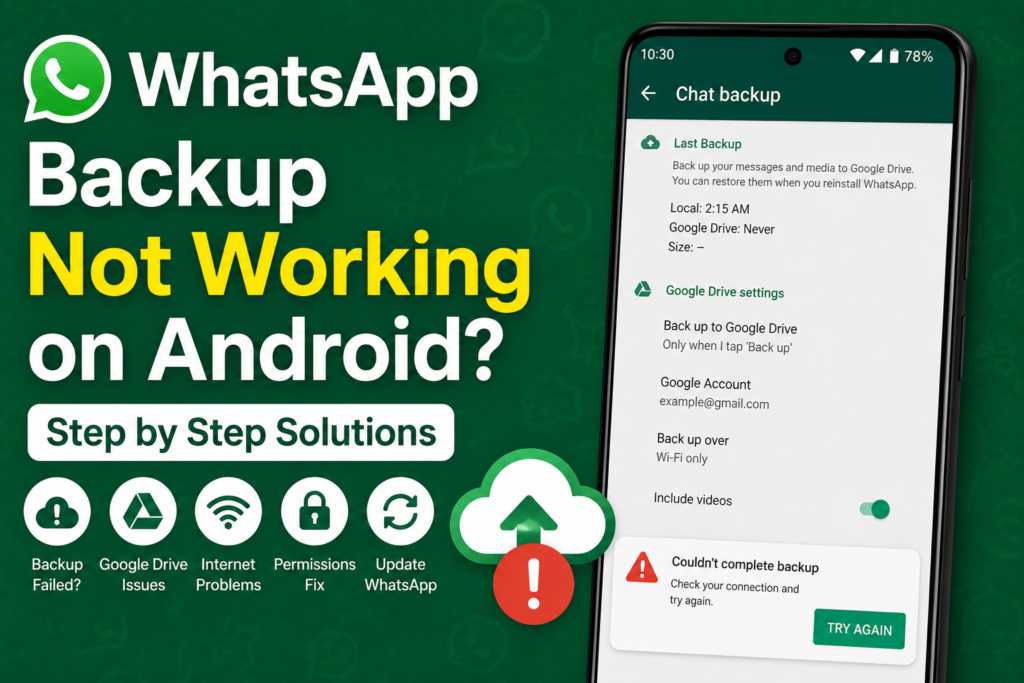
WhatsApp provides an option to include or exclude videos from the backup.
Open:
WhatsApp > Settings > Chats > Chat backup
Look for the option related to including videos and consider turning it off temporarily.
Then try creating a new backup.
If the backup completes successfully without videos, you have probably identified the main reason for the problem.
You can later decide whether you really need those videos included in your cloud backup.
Check WhatsApp Permissions
WhatsApp needs appropriate permissions to access information required for its normal operation.
Open Android Settings and go to Apps, then select WhatsApp.
Open the permissions section and review the available permissions.
Make sure WhatsApp has the access it needs for photos, videos, files, and other relevant content on your Android version.
Android versions can use slightly different permission names, so the exact menu may look different on your phone.
After reviewing the permissions, restart WhatsApp and try the backup again.
Update WhatsApp
Using an outdated version of WhatsApp can cause compatibility problems.
Open the Google Play Store and search for WhatsApp.
If an update is available, install it.
Once the update finishes, open WhatsApp and check the chat backup settings again.
App updates can include bug fixes and improvements that resolve problems with backups, Google services, and Android compatibility.
I recommend keeping WhatsApp updated rather than ignoring available updates for long periods.
Update Google Play Services
Google Play Services is an important part of many Android features.
If it is outdated or experiencing a problem, applications that depend on Google services may not work properly.
Open the Google Play Store and check whether Google Play Services has an available update.
You should also make sure other important Google components are updated.
After updating, restart your phone and try the WhatsApp backup again.
Clear WhatsApp Cache
If WhatsApp has accumulated corrupted temporary files, clearing its cache may help.
Open Android Settings and go to:
Apps > WhatsApp > Storage
Look for the option to clear the cache.
Clearing the cache removes temporary files and normally does not delete your WhatsApp conversations.
Be careful not to select an option that deletes the complete app data unless you understand what it does and have a secure backup of your important information.
After clearing the cache, open WhatsApp and try running the backup again.
Keep WhatsApp Open During Backup
If your phone aggressively restricts background activity, WhatsApp may struggle to complete a large backup.
For testing, keep WhatsApp open while the backup is running.
Connect your phone to a charger and use a reliable WiFi connection.
Avoid switching between many applications while the backup is processing.
This is particularly helpful when you have a large backup that needs considerable time to upload.
Turn Off Battery Saver Temporarily
Battery saving features can restrict background activity.
If your Android phone has an aggressive battery optimization system, it may stop WhatsApp from continuing a backup when the application is running in the background.
Open your battery settings and check whether WhatsApp has restricted background activity.
You can temporarily disable battery saver mode and try the backup again.
If the backup works after changing these settings, you can adjust WhatsApp’s battery permissions instead of keeping battery saver completely disabled.
Check Date and Time
Incorrect date and time settings can sometimes interfere with online services.
Open your Android date and time settings and enable automatic date and time if the option is available.
Also check that your time zone is correct.
After making the change, restart WhatsApp and try creating a backup.
This is a simple step, but it can eliminate another possible cause of connection and authentication problems.
Remove and Add Your Google Account Carefully
If WhatsApp still cannot connect to your Google Drive account, the Google account connection itself may need attention.
Before making changes, make sure you know the Google account credentials and have access to your important Google services.
You can remove and add the Google account again through Android account settings, but I recommend trying all simpler solutions first.
After reconnecting the account, open WhatsApp and select the correct Google account in the chat backup settings.
Then start a new backup.
Check Whether the Backup Is Actually Stuck
Sometimes a backup is not broken. It is simply taking a long time.
This is especially true when you have years of WhatsApp photos and videos.
A large backup can take considerable time depending on your internet speed and the amount of data being uploaded.
If the backup percentage is slowly increasing, give it some time.
If it remains at exactly the same point for a very long period, then troubleshooting makes more sense.
Reinstall WhatsApp Only as a Last Option
If every other solution fails, reinstalling WhatsApp may help with persistent application problems.
However, this should be your last option.
Before uninstalling WhatsApp, make sure you understand your existing backup situation. If there is no recent cloud backup, uninstalling the app can put your local chat data at risk.
If you have an existing backup and are confident that your important conversations are protected, you can reinstall WhatsApp and restore the available backup during setup.
Never uninstall WhatsApp simply because the backup button is not working without first checking whether your chats are safely stored.
Final Thoughts
When WhatsApp backup is not working on Android, the problem can usually be traced to a small number of common causes. A weak internet connection, insufficient Google storage, low phone storage, incorrect Google account settings, outdated software, restricted permissions, or a large video filled backup can all cause problems.
I recommend starting with the basics. Check your internet connection, restart your phone, confirm the correct Google account, and check available storage.
Next, update WhatsApp and Google services, review permissions, clear the WhatsApp cache, and temporarily disable battery restrictions. If your backup contains a huge number of videos, try creating a backup without videos and see whether it completes.
The most important thing is to avoid rushing into uninstalling WhatsApp. Your chats and media can be valuable, and you should always understand your backup situation before making major changes.
With these WhatsApp backup solutions for Android, most backup problems can be diagnosed and fixed without losing important conversations. Take each step one at a time, test the backup after every change, and you should be able to identify what is preventing WhatsApp from completing the backup.