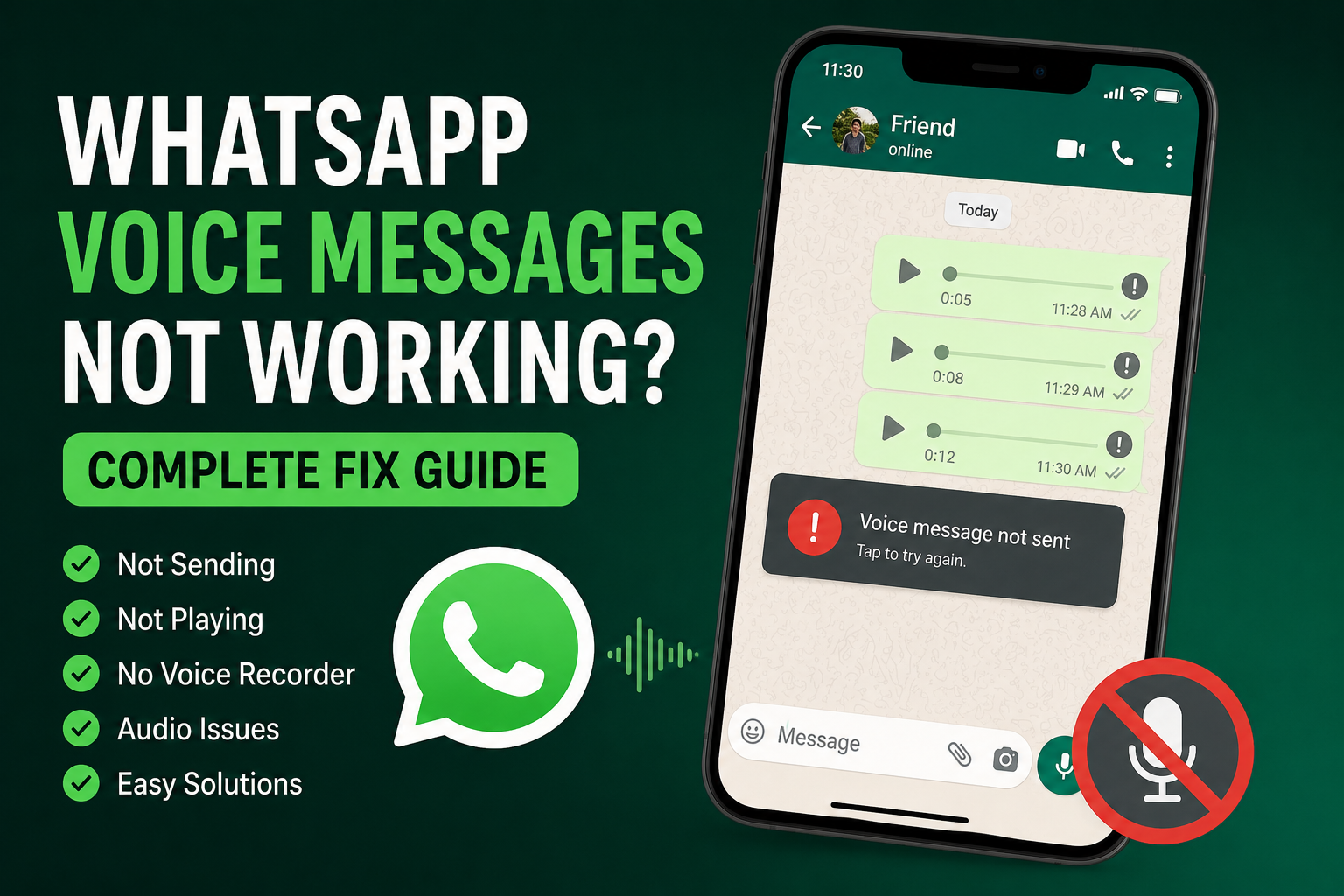
WhatsApp voice messages are one of the easiest ways to communicate when typing a long message is not convenient. I personally use voice messages when I want to explain something quickly, but it can be frustrating when the microphone does not work, the voice message does not send, or received audio refuses to play.
If you are facing the WhatsApp voice messages not working problem, there can be several reasons behind it. The issue may be related to microphone permissions, internet connectivity, storage space, WhatsApp settings, Bluetooth devices, an outdated application, or a temporary software problem.
In this guide, I will explain the most useful solutions I know for fixing WhatsApp voice messages on Android and iPhone. I recommend trying the simple solutions first and then moving toward the more advanced methods.
Why Are WhatsApp Voice Messages Not Working?
Before changing anything, it helps to understand what may be causing the problem.
WhatsApp needs access to your device microphone to record voice messages. If microphone permission has been disabled, WhatsApp may not be able to record your voice.
Another common reason is a weak or unstable internet connection. A voice message may record correctly but fail to send if the connection keeps dropping.
Bluetooth devices can also cause confusion. If wireless headphones or another Bluetooth device is connected, your phone may use its microphone or speaker instead of the built in hardware.
Storage problems can also affect WhatsApp. If your phone is almost full, WhatsApp may have difficulty saving or processing new media.
Sometimes the problem is simply a temporary WhatsApp or phone software issue.
Check Your Internet Connection
The first thing I recommend checking is your internet connection.
Open a website or another application that requires internet access. If other services are also loading slowly, the problem may not be WhatsApp itself.
Try switching from WiFi to mobile data or from mobile data to WiFi.
If WhatsApp voice messages start working after changing the connection, your original network was probably causing the problem.
You can also restart your router if you are using WiFi. After reconnecting, open WhatsApp and try sending a short voice message.
Check WhatsApp Microphone Permission
Microphone permission is extremely important for WhatsApp voice messages.
On Android, open your phone settings and find Apps. Select WhatsApp and then open Permissions. Look for the microphone permission and make sure it is allowed.
On iPhone, open Settings, find WhatsApp, and check that Microphone access is enabled.
The exact menu names can vary depending on your phone model and operating system version.
After enabling microphone access, completely close WhatsApp and open it again. Then try recording a new voice message.
Test Your Phone Microphone
If WhatsApp still cannot record your voice, test the microphone outside WhatsApp.
Open your phone’s built in voice recorder and record a short audio clip.
Play the recording afterward.
If your voice sounds clear, the phone microphone is probably working and the issue may be related to WhatsApp settings or permissions.
If the recording is silent or extremely quiet, the problem may be with the phone microphone itself.
Check whether the microphone opening is blocked by dust, a phone case, or another object. Cleaning the device carefully can sometimes improve microphone performance.
Disconnect Bluetooth Devices
One solution that is easy to overlook is Bluetooth.
If wireless earbuds, headphones, a car system, or another Bluetooth device is connected, WhatsApp may use that device for audio input or output.
Turn Bluetooth off temporarily and then try recording a WhatsApp voice message.
If everything works after Bluetooth is disabled, reconnect your device and check its microphone settings.
This is particularly useful when WhatsApp voice messages record but the sound is missing or very quiet.
Increase Your Phone Volume
If you can record voice messages but cannot hear them, check your phone volume.
Press the volume buttons while playing the WhatsApp voice message.
Make sure the media volume is turned up.
Also check whether your phone is connected to Bluetooth headphones or another audio device. Your voice message may actually be playing through that device instead of the phone speaker.
On some phones, WhatsApp can also use the earpiece when the phone detects that it is close to your face. Move the phone away from your face and try playing the message again.
Restart WhatsApp
Sometimes WhatsApp simply needs to be restarted.
Close WhatsApp completely and remove it from your recent applications. Wait a few seconds and open it again.
Try recording and sending a short voice message.
If that does not work, restart your phone.
A simple restart can clear temporary software problems and reload the microphone, audio, network, and background services that WhatsApp depends on.
Clear WhatsApp Cache on Android
Android users can try clearing the WhatsApp cache.
Open Settings, go to Apps, select WhatsApp, and open Storage or Storage and Cache.
Choose Clear Cache.
Be careful not to select options that delete your WhatsApp data unless you have a proper backup and understand the consequences.
Clearing the cache removes temporary files and does not normally remove your conversations.
After clearing the cache, open WhatsApp and test voice messages again.
Check Your Phone Storage
Low storage space can create unexpected problems with messaging applications.
Open your phone storage settings and check how much free space is available.
If your phone is almost full, remove unnecessary videos, downloads, duplicate pictures, or unused applications.
WhatsApp handles many types of media, including voice messages, images, videos, and documents. Having enough free storage can help the application work more reliably.
After freeing some space, restart WhatsApp and try sending a voice message.
Update WhatsApp
Using an outdated version of WhatsApp can sometimes cause compatibility or performance problems.
Open the Google Play Store on Android or the App Store on iPhone.
Search for WhatsApp and check whether an update is available.
If an update is available, install it and restart your phone afterward.
Keeping WhatsApp updated is also useful because application updates can include bug fixes and improvements.
Check Battery Saver Restrictions
Some Android phones aggressively restrict applications that run in the background.
If WhatsApp has restricted background activity, certain functions may not behave correctly.
Open your phone settings and find WhatsApp under battery or application settings.
Look for battery optimization or background activity options.
Allow WhatsApp to operate normally if your phone is heavily restricting it.
The exact settings depend on the manufacturer, so Samsung, Xiaomi, OnePlus, Oppo, Vivo, and other Android phones may use different menu names.
Turn Off Screen Recording and Other Audio Apps
Another application using the microphone can sometimes interfere with WhatsApp.
If you are using a screen recorder, voice recorder, call recording application, meeting application, or another service that uses the microphone, close it temporarily.
Then open WhatsApp and try recording again.
If the voice message works afterward, another application was probably accessing the microphone.
Check WhatsApp During Calls
If WhatsApp voice messages work normally until you receive or make a phone call, test the microphone after ending the call.
Phone calls and other communication applications can temporarily access audio hardware.
Close other communication applications and try WhatsApp again.
This can help determine whether the microphone problem is specific to WhatsApp or related to another application.
Try Sending a Voice Message to Another Contact
If your voice message fails with one particular chat, try sending a short recording to another contact.
This can help identify whether the problem affects your entire WhatsApp account or just one conversation.
If voice messages work in another chat, the original conversation may have a temporary issue.
If they fail everywhere, focus on your microphone, permissions, internet connection, storage, and WhatsApp installation.
Reinstall WhatsApp as a Last Resort
If everything else has failed, reinstalling WhatsApp can sometimes fix persistent application problems.
However, do not uninstall WhatsApp without making sure your important conversations and media are backed up.
On Android and iPhone, use WhatsApp’s backup settings to create a recent backup before removing the application.
After reinstalling WhatsApp, sign in with the same phone number and restore your backup when prompted.
Once the setup is complete, test voice messages again.
What to Do When WhatsApp Voice Messages Have No Sound
There is an important difference between voice messages not recording and voice messages having no sound.
If the message records but contains no sound, test your phone microphone with another application.
If the microphone works elsewhere, check WhatsApp microphone permission and Bluetooth connections.
If the message has sound but you cannot hear it, increase media volume and disconnect Bluetooth devices.
Also check the phone’s proximity sensor behavior because WhatsApp may switch audio playback to the earpiece when the phone is close to your face.
What to Do When WhatsApp Voice Messages Will Not Send
If the voice message records normally but refuses to send, focus on your internet connection.
Switch between WiFi and mobile data and test again.
Restart WhatsApp and your phone.
Check whether WhatsApp has permission to use mobile data and background data.
Also check your phone storage because insufficient storage can interfere with media processing.
If other WhatsApp messages are also failing to send, there may be a broader connection or WhatsApp service problem rather than an audio problem.
Final Thoughts
When WhatsApp voice messages are not working, I recommend avoiding complicated fixes at the beginning. Start by checking your internet connection, microphone permission, Bluetooth connection, phone volume, and available storage.
If the microphone itself is working correctly, clearing the WhatsApp cache on Android, updating WhatsApp, restarting the phone, and checking battery restrictions are good next steps.
For problems that continue after all basic troubleshooting, make a proper WhatsApp backup and consider reinstalling the application.
In my experience, most WhatsApp voice message problems are caused by a small setting, permission, connection issue, or temporary software problem. Once you identify whether the message is failing to record, failing to send, or simply failing to play, finding the correct solution becomes much easier.