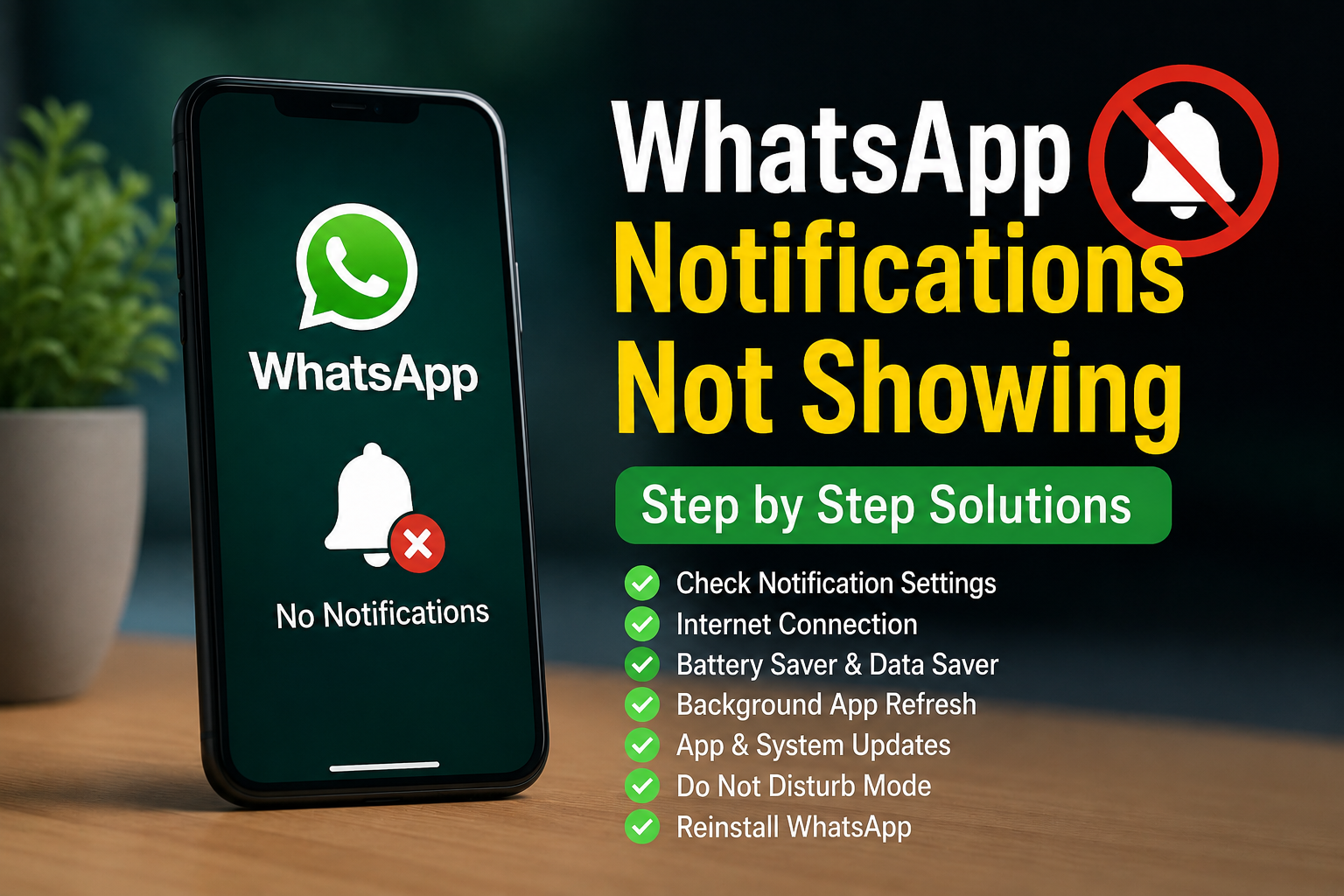
WhatsApp notifications are something most of us depend on every day. We expect a notification as soon as someone sends a message, makes a call, or replies in a group. That is why it can be frustrating when WhatsApp notifications are not showing even though messages are arriving normally.
I have seen this problem happen for different reasons. Sometimes the notification permission is turned off. Sometimes battery saver settings stop WhatsApp from working properly in the background. In other cases, the internet connection, app settings, Do Not Disturb mode, or an outdated version of WhatsApp can be responsible.
The good thing is that you usually do not need to reinstall your phone or make complicated changes. In this guide, I will explain the most useful solutions I would try when WhatsApp notifications are not showing on Android or iPhone.
Check Your Internet Connection First
The first thing I normally check is the internet connection.
WhatsApp needs an active internet connection to receive new messages and deliver notifications. If your WiFi connection is unstable or mobile data is not working properly, notifications may be delayed.
Open your browser and visit a website. If the website is not loading, fix your internet connection first.
You can also switch from WiFi to mobile data or from mobile data to WiFi. If WhatsApp notifications start working after changing the connection, the problem may be related to your network.
Sometimes simply turning Airplane Mode on for a few seconds and then turning it off can refresh the connection.
Restart Your Phone
Restarting your phone is another simple solution that I recommend before changing advanced settings.
Temporary system problems can affect background applications and notification services. WhatsApp may also stop responding correctly after the phone has been running for a long time.
Restart your Android phone or iPhone and wait for it to fully start. Then ask someone to send you a WhatsApp message and check whether the notification appears.
If notifications start working after the restart, the issue was probably temporary.
Check WhatsApp Notification Settings
One of the most common reasons WhatsApp notifications are not showing is that notifications have been disabled.
Open your phone settings and find the notifications section. Select WhatsApp and make sure notifications are allowed.
On Android, you may see different notification categories for messages, groups, calls, and other alerts. Make sure the categories you want are enabled.
On iPhone, open Settings, go to Notifications, select WhatsApp, and make sure Allow Notifications is enabled.
Also check whether notifications are allowed on the lock screen, notification center, and banners.
Sometimes notifications are technically enabled but are configured to appear in a way that is easy to miss.
Check WhatsApp Notification Settings
Your phone settings are not the only place where notifications can be controlled.
Open WhatsApp and go to Settings. Open Notifications and review the available options.
Make sure message notifications and group notifications are enabled. Check the notification tone as well because a silent notification can make it appear as though WhatsApp is not sending alerts.
If you are only having a problem with one particular chat, open that conversation and check whether it has been muted.
A muted chat can continue receiving messages normally while notifications remain silent.
Check If a Chat Is Muted
If notifications work for most conversations but one person or group does not send alerts, check the mute setting.
Open the WhatsApp conversation and look for the notification or mute option. If the chat is muted, remove the mute setting.
This is an easy detail to overlook because WhatsApp itself can continue working normally. You may receive the messages when you open the application, but you will not necessarily receive the normal notification for every new message.
Turn Off Do Not Disturb
Do Not Disturb is another setting that can prevent WhatsApp notifications from appearing.
On both Android and iPhone, Do Not Disturb can silence notifications depending on your configuration.
Open your phone control panel or settings and check whether Do Not Disturb, Focus mode, or another notification restriction is active.
If it is enabled, turn it off temporarily and test WhatsApp.
On some phones, a custom schedule may automatically enable Do Not Disturb at certain times. If your notifications disappear at a particular time every day, this setting is worth checking carefully.
Disable Battery Saver for WhatsApp
Battery saving features are useful for extending battery life, but they can sometimes restrict background activity.
Android phones from different manufacturers may have aggressive battery management features. These can prevent WhatsApp from running properly in the background.
Open your battery settings and look for battery optimization or background usage settings. Find WhatsApp and make sure it is allowed to operate normally in the background.
If your phone provides an option such as unrestricted battery usage for WhatsApp, you can test that option.
I would especially check this setting if WhatsApp notifications appear only after you open WhatsApp manually.
Check Background Data
WhatsApp needs permission to use data while running in the background.
If background data has been restricted, WhatsApp may not receive messages until you open the app.
On Android, open the WhatsApp app settings and check its mobile data or data usage permissions. Make sure background data is allowed.
Also check whether Data Saver is enabled on the phone. If it is, allow WhatsApp to use background data when Data Saver is active.
This solution can make a noticeable difference when notifications are delayed rather than completely missing.
Check Background App Refresh on iPhone
If you are using an iPhone, Background App Refresh is another setting worth checking.
Open Settings and find General. Select Background App Refresh and make sure the feature is available for WhatsApp.
Also check your mobile data settings if you use WhatsApp while away from WiFi.
Keep in mind that iPhone notification behavior depends on several system settings, so checking only one option may not always solve the problem.
Update WhatsApp
An outdated version of WhatsApp can sometimes cause notification problems.
Open the Google Play Store on Android or the App Store on iPhone and search for WhatsApp. If an update is available, install it.
Updates can include bug fixes and compatibility improvements. If notifications stopped working after a phone system update, using the latest WhatsApp version is especially important.
After updating WhatsApp, restart your phone and test the notifications again.
Check Your Phone Storage
Very low storage can sometimes cause applications and system services to behave unexpectedly.
Open your phone storage settings and check how much free space is available.
If your storage is almost completely full, remove unnecessary videos, downloads, duplicate photos, or unused applications.
You do not need to delete important WhatsApp conversations simply because notifications are not working. The goal is to make sure the operating system has enough free space to function normally.
Clear WhatsApp Cache on Android
Android users can try clearing the WhatsApp cache.
Open Settings, find Apps, select WhatsApp, and open Storage. Look for the option to clear cache.
Clearing cache is different from clearing app data. Cache files are temporary files, while clearing app data can remove local application information and may require you to configure the application again.
For that reason, I recommend clearing only the cache first.
After clearing it, open WhatsApp and test notifications.
Check Date and Time Settings
Incorrect date and time settings can occasionally cause problems with internet based applications.
I recommend setting your phone to use the automatic date and time option.
On Android and iPhone, open the date and time settings and enable automatic time if available.
This is not the most common reason for missing WhatsApp notifications, but it is easy to check and can eliminate another possible cause.
Check Notification Preview Settings
Sometimes notifications are actually arriving, but their content is hidden.
If you can hear a notification sound but cannot see the message information, check your notification preview settings.
Both Android and iPhone provide privacy options that control how much notification information appears on the lock screen.
You can choose the option that best fits your privacy needs while making sure notifications are visible enough for you to notice them.
Reinstall WhatsApp as a Last Option
If nothing else works, reinstalling WhatsApp can sometimes solve persistent application problems.
Before uninstalling WhatsApp, make sure your chats are backed up properly. Open WhatsApp settings and check the available chat backup options.
After confirming your backup, uninstall WhatsApp and install the latest version again from the official app store.
Log in using your phone number and restore your backup when prompted.
I would keep this method near the end of the troubleshooting process because reinstalling an application takes more time and requires you to pay attention to your backup.
Final Thoughts
When WhatsApp notifications are not showing, I would not immediately assume that WhatsApp itself is broken. In many cases, the problem comes from notification permissions, battery restrictions, background data, Do Not Disturb, muted conversations, or an outdated application.
Start with the simple solutions. Check your internet connection, restart your phone, verify WhatsApp notification permissions, and make sure individual chats are not muted.
If that does not work, check battery saver settings, background data, Data Saver, Background App Refresh, and system notification settings. Updating WhatsApp can also fix problems caused by an outdated application.
Android users can additionally try clearing the WhatsApp cache, while iPhone users should pay close attention to notification and Focus settings.
If WhatsApp notifications still do not appear after all of these steps, make sure your chats are backed up and consider reinstalling the application.
The most useful approach is to test one solution at a time. That way, you can identify the setting that caused the problem instead of changing everything at once. In most cases, a few simple adjustments are enough to get WhatsApp notifications working normally again.