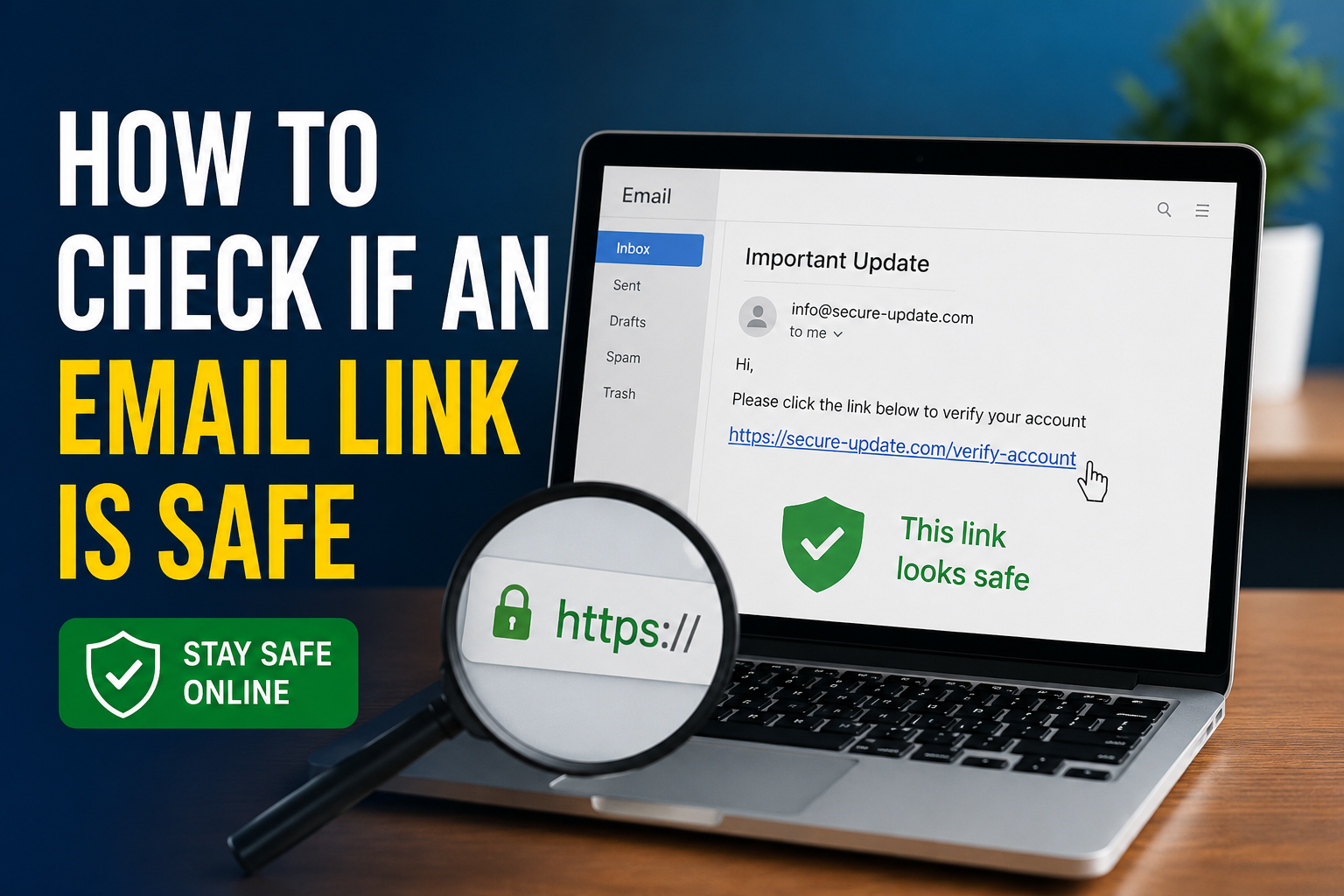
Email is one of the most useful ways to communicate, but it is also one of the easiest places for scammers to target people. Almost every day, we receive emails containing links. Some links may take us to a normal website, while others can lead to fake login pages, malware, phishing websites, or other online threats.
I have learned that the safest approach is simple: never click an email link just because it looks familiar or urgent. Taking a few seconds to check the link can prevent many security problems.
In this guide, I will explain how to check if an email link is safe, what warning signs to look for, and what you should do if you are not sure about a link.
Why You Should Check Email Links Before Clicking
A link inside an email may look completely normal at first. For example, an email may appear to come from a bank, shopping website, social media platform, delivery company, or even a friend.
The problem is that scammers can make emails look very convincing. They may copy logos, colors, writing styles, and other details from legitimate companies.
The real danger is usually hidden behind the link.
A phishing link can send you to a fake website that asks for your username, password, credit card information, or verification code. Some links can also attempt to download harmful software onto your device.
That is why checking an email link before opening it is an important part of basic online security.
1. Check the Sender’s Email Address
The first thing I recommend checking is the sender’s email address.
Do not rely only on the name shown in your inbox. A scammer can make an email appear to come from a familiar company or person while using a completely different email address.
For example, an email might display the name “Your Bank” but the actual address could be something strange such as:
Look carefully at the domain after the @ symbol. If the message claims to come from a major company but the email address uses an unrelated domain, that should immediately make you suspicious.
Even when the sender address looks legitimate, I still recommend checking the link itself because an account can sometimes be compromised.
2. Hover Over the Link Without Clicking
One of the easiest ways to check if an email link is safe is to hover your mouse over it.
On a computer, move the mouse pointer over the link without clicking it. Your email application will usually show the actual destination somewhere on the screen, often near the bottom of the browser or email window.
This is extremely useful because the visible text of a link does not always match the real destination.
For example, the email might say:
“Verify your account”
But the actual destination could be a completely unrelated website.
If the destination looks strange, contains random characters, or uses a domain you do not recognize, do not click it.
On a phone, you can often press and hold a link to preview its destination. However, the exact behavior depends on your email application.
3. Look Carefully at the Domain Name
The domain name is one of the most important things to inspect when checking an email link.
Scammers often create domains that look similar to legitimate websites. They may add extra words, numbers, or characters to make the website appear genuine.
For example, a fake website might use a name that looks similar to a real company but has an unusual spelling.
This is why I do not simply look for the company name somewhere in the URL. I look carefully at the actual domain.
A website containing a familiar brand name does not automatically belong to that brand.
4. Check for HTTPS, But Do Not Trust It Completely
You may have noticed that many websites begin with HTTPS. A secure connection is useful because it encrypts information between your browser and the website.
However, HTTPS alone does not prove that a website is legitimate.
Scammers can also obtain HTTPS certificates for fraudulent websites.
So, when I check an email link, I consider HTTPS a basic security feature rather than proof that the website is safe.
I still check the domain name, the email source, and the reason the message was sent.
5. Watch for Urgent Messages
Scammers often use urgency to make people act without thinking.
You might receive an email saying that your account will be closed, your payment failed, your package is waiting, or your password must be changed immediately.
The goal is to make you worried enough to click the link quickly.
Whenever an email creates unnecessary pressure, I slow down.
Instead of clicking the link, I open the company’s official website directly by typing its address into my browser or using its official app. Then I check whether there is actually a problem with my account.
This approach removes the email link from the process completely.
6. Be Careful With Unexpected Attachments and Links
An unexpected email containing a link deserves extra attention.
This is especially true if you were not expecting a message from the sender.
For example, if someone suddenly sends you a document, invoice, password reset request, or account verification link that you did not request, do not immediately open it.
If the email supposedly comes from someone you know, contact that person using another method and ask whether they actually sent it.
A compromised email account can be used to send dangerous links to the person’s contacts.
7. Look for Spelling and Grammar Problems
Poor spelling and grammar do not automatically mean an email is dangerous, but they can be warning signs.
Many phishing emails contain awkward sentences, unusual wording, incorrect company names, or strange formatting.
A professional company can occasionally make a mistake, so I would not reject an email based on grammar alone. Instead, I look at the overall picture.
If the sender is suspicious, the message is poorly written, and the link goes to an unfamiliar domain, I would avoid it.
8. Do Not Enter Passwords After Following a Suspicious Link
One of the biggest dangers of phishing links is fake login pages.
A fake website may look almost identical to a legitimate login page. It can ask you to enter your email address and password.
If you enter your information, the scammer may receive it immediately.
That is why I prefer opening important services directly instead of using login links from unexpected emails.
If you need to access your bank, email account, social media account, or shopping account, open the official app or manually enter the website address.
9. Use a Link Scanner When Necessary
If you are unsure about a link, you can use a reputable online URL checking service to analyze it.
These services may compare the website against known malicious or suspicious websites.
However, I would still avoid entering sensitive information into a website simply because a scanner says the link appears safe. Security tools can make mistakes, and new threats may not yet be detected.
Use link scanners as an additional layer of protection rather than your only method of checking a link.
10. Check the Link on a Computer Before Opening It
When I receive a suspicious email on my phone, I prefer not to tap the link immediately.
If the message is important and I need to investigate it, I may open the email on a computer where I can hover over the link and clearly see the destination.
This makes it easier to inspect long URLs and identify unusual domains.
A larger screen can also make suspicious details easier to notice.
11. Never Share Verification Codes Through Email Links
Some phishing emails attempt to steal verification codes along with passwords.
For example, a fake login page may ask for your password and then request the security code sent to your phone.
Never provide a verification code to a website unless you are certain you are on the legitimate service you intended to access.
A verification code is designed to protect your account. Giving it to a scammer can allow them to bypass an important security layer.
What to Do If You Already Clicked a Suspicious Link
If you accidentally clicked a suspicious email link, do not panic.
First, close the website if it looks suspicious.
If you entered your password, change that password immediately using the official website or app. If you use the same password on other accounts, change it there as well.
If you entered financial information, contact your bank or card provider through an official phone number or website.
You should also run a security check on your device and make sure your operating system, browser, and security software are updated.
If you downloaded an unknown file, do not open it. Remove it and perform a security scan.
A Simple Email Link Safety Routine
I find it helpful to follow the same routine every time I receive an unexpected email link.
First, I check who sent the email.
Second, I read the message carefully and ask myself whether I was expecting it.
Third, I hover over the link without clicking.
Fourth, I inspect the complete destination and domain.
Fifth, I look for urgency, unusual wording, or other warning signs.
Finally, if I am still unsure, I do not use the link. I visit the company’s official website or app directly.
This routine only takes a few seconds, but it can significantly reduce the chance of falling for a phishing attack.
Final Thoughts
Knowing how to check if an email link is safe is an important online security skill. You do not need to be a cybersecurity expert to protect yourself. A little patience and careful checking can make a big difference.
The most important lesson I have learned is that a familiar looking email does not necessarily mean a safe email. Always check the sender, inspect the destination URL, look carefully at the domain, and be cautious with messages that create unnecessary urgency.
When something feels unusual, I would rather spend an extra minute checking it than spend hours trying to recover a compromised account.
If you are unsure about an email link, the safest option is usually not to click it. Open the official website or app yourself and check the information there.
A few seconds of caution can protect your passwords, personal information, money, and online accounts.