In today’s digital world, privacy has become something I take seriously, especially when it comes to the microphone on my phone or computer. Many apps request microphone permission because they need it for calls, voice messages, video recording, voice search, or other useful features. However, not every app that has microphone access necessarily needs it all the time.
If you have ever wondered how to check which apps can access your microphone, the good news is that both Android and iPhone provide simple ways to review these permissions. Windows and Mac computers also offer microphone privacy settings that let you control which applications can use your microphone.
In this guide, I will explain how I check microphone permissions and how you can review or remove access from apps that do not need it.
Why Should You Check Microphone Permissions?
Your microphone can capture conversations, background sounds, voice commands, and other audio around you. That makes microphone access an important privacy setting.
I recommend checking microphone permissions occasionally because you may have installed several apps over time and forgotten which permissions you gave them. Some apps genuinely need microphone access, while others may request it for optional features.
Reviewing microphone access can help you:
- Protect your personal privacy
- Stop unnecessary apps from using your microphone
- Understand which apps have microphone permission
- Reduce unnecessary background activity
- Control app permissions more carefully
- Identify apps that request permissions you do not expect
You do not need to assume that every app with microphone permission is dangerous. The important thing is knowing which apps have access and deciding whether that access makes sense.
How Do Apps Get Microphone Access?
When you install an app, it may request permission to use your microphone. For example, a messaging application may need microphone access so you can record voice messages or make audio calls.
Usually, your device asks you to allow or deny the permission. Depending on the operating system and its version, you may also see options such as allowing microphone access only while an app is being used.
The important thing is that microphone permission is not permanent. You can normally return to your privacy settings and change it whenever you want.
How to Check Which Apps Can Access Your Microphone on Android
Android provides a straightforward permission management system. The exact names of menus can vary slightly depending on your phone manufacturer and Android version, but the general process is similar.
Step 1: Open Settings
First, open the Settings app on your Android phone.
You can usually find it in your app drawer or by pulling down the notification panel and tapping the settings icon.
Step 2: Open Privacy Settings
Scroll through the settings and look for Privacy. On some phones, microphone permissions may be located under Security and Privacy.
Tap the appropriate option to continue.
Step 3: Open Permission Manager
Look for Permission Manager or an option related to app permissions.
Permission Manager shows different types of information that apps can access, including the camera, microphone, location, contacts, and storage.
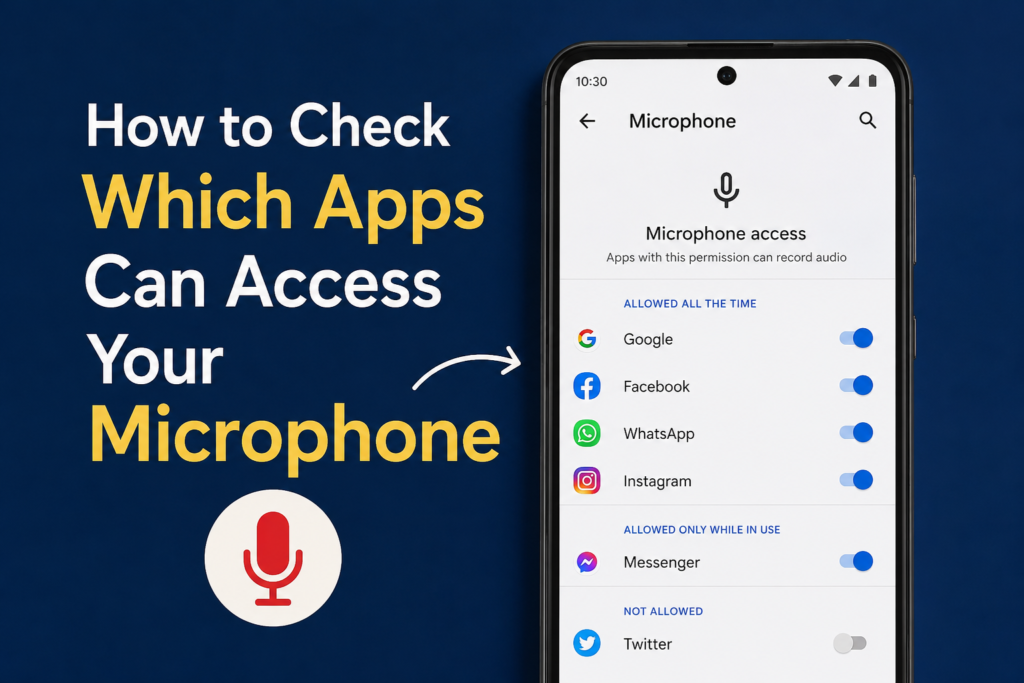
Step 4: Select Microphone
Tap Microphone.
You should now see a list of apps that have requested microphone permission. Depending on your Android version, the apps may be separated into categories such as allowed, allowed only while in use, or not allowed.
Step 5: Review the Apps
Go through the list carefully.
If you see an app that you rarely use or an app that does not appear to need microphone access, tap it to see its permission options.
You can then change the setting according to your preference.
Step 6: Remove Unnecessary Access
If you do not want an app to use your microphone, choose the option that denies microphone access.
Keep in mind that removing microphone permission may affect certain features. For example, a video calling app may not be able to record your voice during a call if microphone access is disabled.
How to Check Microphone Access on iPhone
If you use an iPhone, Apple also provides a dedicated privacy section for microphone permissions.
Open Settings and scroll down to Privacy & Security.
Tap Microphone.
You will see a list of apps that have requested access to your iPhone microphone. Apps with permission enabled can use the microphone when the operating system allows them to do so.
If you do not want a particular app to access your microphone, turn its microphone permission off.
I recommend reviewing this list carefully rather than disabling microphone access for every app. Some applications need the microphone for their main functions.
For example, a communication app may need microphone access for voice calls. A voice recording application obviously needs it to record audio. On the other hand, an app that has no obvious reason to record sound may deserve a closer look.
How to Check Microphone Access on Windows 11
You can also check microphone permissions on a Windows computer.
Open Settings and select Privacy & security.
Find Microphone under the app permissions section.
Here, Windows provides settings that control microphone access. You can see whether microphone access is enabled and review which applications are allowed to use it.
You may also find separate controls for desktop applications. This is useful because many traditional Windows programs do not appear in exactly the same way as Microsoft Store applications.
If you notice that microphone access is enabled for applications you do not use, you can review those settings and disable access where appropriate.
How to Check Microphone Access on Mac
Mac users can review microphone permissions through System Settings.
Open System Settings, then select Privacy & Security.
Choose Microphone.
You will see applications that have requested access to your Mac microphone. From here, you can allow or deny microphone access for individual applications.
If an application does not need your microphone for anything you do with it, I would personally consider turning off its access.
What Should You Do If You Find an Unknown App?
Finding an unfamiliar app with microphone permission does not automatically mean your device has been compromised.
First, check what the application is and why you installed it. Sometimes an app may have a name that you do not immediately recognize, especially if it is part of another service.
You can also check the app information page on your device and review its purpose.
If you genuinely do not recognize an application, I recommend investigating it before giving it microphone access. If you no longer need it, uninstalling it may be a better option than simply removing its microphone permission.
It is also worth keeping your operating system and applications updated because security updates can improve permission controls and privacy protections.
How to Know If an App Really Needs Microphone Access
This is one of the most useful questions to ask when reviewing app permissions.
Think about what the app actually does.
A video calling app probably needs microphone access. A voice recorder needs it. A messaging app may need it for voice messages and calls. A camera application may need it when recording videos with sound.
However, if an application has no feature that obviously requires audio input, I would question why it needs microphone permission.
You can always deny the permission and see whether the app continues working normally. If an important feature stops working, you can decide whether that feature is worth giving microphone access for.
Watch for Microphone Indicators
Modern operating systems can provide visual indicators when the microphone is being used.
On supported Android and iPhone devices, you may see a privacy indicator when an application is actively accessing the microphone. Windows and Mac also provide privacy controls and indicators depending on the operating system version.
If you notice microphone activity when you are not intentionally using a feature that requires it, check your recently used applications and microphone permissions.
The indicator itself does not necessarily mean something harmful is happening. An application could be performing a legitimate function. However, it is a useful reminder to review your privacy settings.
Common Mistakes When Managing Microphone Permissions
One mistake I often see is allowing every permission without reading the request. It is convenient to tap Allow and continue, but this can give applications more access than necessary.
Another mistake is never reviewing permissions after installing new apps.
I recommend checking your microphone permissions occasionally, especially after installing several new applications.
You should also avoid downloading applications from unreliable sources. Installing apps from trusted stores and keeping your device updated can reduce unnecessary security risks.
Finally, do not assume that denying microphone access will remove an application completely. It only controls that particular permission. If you do not trust an app at all, uninstalling it may be a better solution.
Final Thoughts
Learning how to check which apps can access your microphone is a simple but useful privacy habit. Whether you use Android, iPhone, Windows, or Mac, you have tools that let you review microphone permissions and decide which applications should have access.
I personally recommend checking these permissions from time to time instead of waiting until something seems wrong. Start by reviewing the apps that currently have access, then ask yourself whether each one genuinely needs the microphone.
If an app does not need microphone access, you can usually turn the permission off without affecting the rest of your device. For apps that rely on voice calls, recording, or voice commands, you can keep the permission enabled.
A few minutes spent reviewing your microphone permissions can give you better control over your privacy and help you understand exactly how your apps interact with your device.