In today’s digital world, privacy has become something I take seriously, especially when it comes to the camera on my phone or computer. Many apps need camera access for useful features such as video calls, taking pictures, scanning QR codes, uploading photos, or recording videos. However, not every app actually needs this permission.
If you have installed many apps over time, you may not even remember which ones you allowed to access your camera. That is why I recommend checking your camera permissions from time to time. It only takes a few minutes and can give you better control over your personal privacy.
In this guide, I will explain how to check which apps can access your camera on Android, iPhone, Windows, and other devices. I will also explain how to remove camera access from apps that do not need it.
Why Should You Check Camera Permissions?
Your phone camera can capture very personal information. Photos, videos, your surroundings, documents, and even private moments can be recorded through it. While modern operating systems provide strong permission controls, it is still a good habit to review which apps have access.
When I check camera permissions, I usually look at every app on the list and ask myself whether that app really needs camera access.
For example, a video calling app normally needs camera permission. A social media app may need it when you want to take a picture directly inside the app. A QR scanner also has a clear reason to use the camera.
On the other hand, if an app has no obvious reason to use your camera, I prefer to remove its permission.
Checking camera access does not mean that an app is automatically dangerous. It simply means you are reviewing your privacy settings and deciding which apps should have access.
How to Check Which Apps Can Access Your Camera on Android
Android phones from different manufacturers can have slightly different menus. The names may also change depending on your Android version. However, the general process is similar.
Open Settings on your Android phone.
Look for Privacy, Security and Privacy, or a similar option.
Tap Permission Manager.
Find and select Camera.
You should now see the apps that have requested camera access. Depending on your phone, you may see categories such as apps that are allowed, apps that are allowed only while using the app, and apps that are not allowed.
Tap an individual app to review its camera permission.
If you do not think the app needs access, change the permission to Don’t allow.
Some Android phones also provide options such as Ask every time or Allow only while using the app. When available, I prefer using limited permissions instead of giving an app permanent access.
Check Camera Permission on Samsung Phones
Samsung Galaxy phones use Samsung’s version of Android, so the menu can look slightly different.
Open Settings and select Security and privacy.
Tap Permission manager.
Select Camera.
You will see apps that have camera permission. Select an app to change its permission.
If an app does not need the camera, choose Don’t allow. If you still need the app occasionally, an option that limits access to when the app is being used may be more appropriate when available.
I recommend checking this list after installing several new apps because it is easy to give permissions quickly and forget about them later.
How to Check Which Apps Can Access Your Camera on iPhone
Apple also gives you a simple way to review camera permissions.
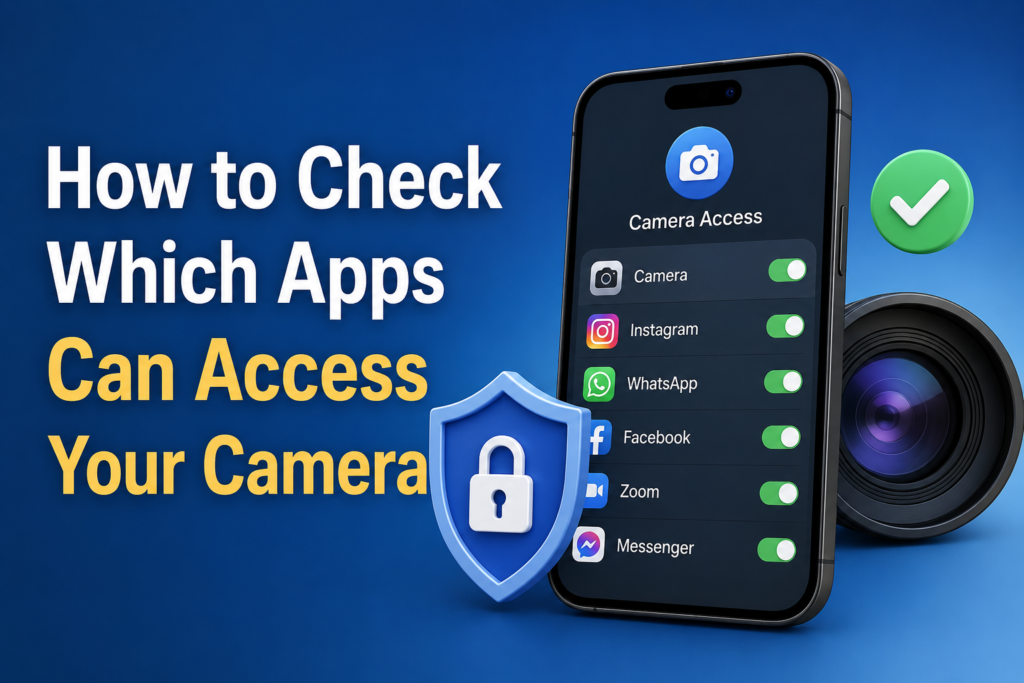
Open Settings on your iPhone.
Scroll down and tap Privacy & Security.
Select Camera.
You will see a list of apps that have requested access to your camera.
If the switch next to an app is turned on, that app has camera permission. If you do not want the app to access your camera, turn the switch off.
This is one of the easiest privacy checks I recommend doing regularly on an iPhone.
You do not need to disable camera access for every app. Instead, consider whether each app actually needs the permission to provide the features you use.
How to Know If an App Really Needs Camera Access
This is where common sense is useful.
A video conferencing app normally needs camera access because its main purpose may include video calls. A camera editing application also has a reasonable reason to request camera access.
However, an app that mainly provides information, notes, calculators, or simple utilities may not need camera access at all.
I do not automatically trust an app simply because it is popular. I look at what the app does and whether camera access makes sense for its features.
If you are unsure, you can temporarily disable camera access and continue using the app. If the app stops an important feature from working, you can decide whether that feature is worth the permission.
How to Remove Camera Access From an App
Removing camera permission is usually straightforward.
On Android, open Settings, go to Privacy or Security and Privacy, select Permission Manager, and choose Camera. Select the app and change its permission to Don’t allow.
On iPhone, go to Settings, then Privacy & Security, followed by Camera. Turn off the switch for the app you want to restrict.
Removing permission does not normally uninstall the app. It simply prevents the app from using the camera through the operating system’s permission system.
If you later decide that the app needs camera access, you can return to the same settings and enable the permission again.
Check Which Apps Recently Used Your Camera
Modern phones can provide indicators when the camera is being used.
On many Android devices, a privacy indicator may appear near the top of the screen when an app uses the camera or microphone. You can often interact with the indicator to find out which app is using the sensor.
iPhone also provides privacy indicators. A green indicator can appear when the camera is being used.
These indicators are useful because they give you a quick way to notice unexpected camera activity.
If you see the camera indicator while you are not intentionally using a camera feature, check which application is responsible. Then review that app’s permissions.
How to Check Camera Access on Windows
Camera privacy is not limited to smartphones. Windows computers also allow you to control which applications can use your camera.
Open Settings on your Windows computer.
Select Privacy & security.
Choose Camera.
You should see camera access settings and options for allowing applications to use your camera.
Depending on your Windows version, you may see controls for camera access for the device, applications, and desktop applications.
Review the list carefully. If you find an application that does not need your camera, consider disabling its access.
This is especially useful on laptops because the built in camera can be used by applications such as video meeting tools, messaging programs, browsers, and other software.
What If You Find an Unknown App With Camera Access?
Finding an unfamiliar app with camera permission does not automatically mean something bad is happening. First, check the app name and remember whether you installed it.
If you do not recognize the application, investigate it before giving it permission again. You can also remove its camera access while you determine what it is.
If the app is no longer useful, uninstalling it may be a better option.
I also recommend reviewing recently installed applications if you notice unexpected permission activity.
Keep Your Camera Permissions Under Control
I believe privacy settings should be checked regularly rather than only when something goes wrong. You do not need to spend hours doing this.
Once every few weeks or months, open your privacy settings and review camera access. You can also do this whenever you install a large number of new applications.
Try to follow a simple rule. Give camera permission only when there is a clear reason for it.
When an app offers limited permission options, use the option that gives you enough functionality without providing more access than necessary.
Also keep your phone, computer, and applications updated. Security updates can improve permission controls and fix known security problems.
Final Thoughts
Learning how to check which apps can access your camera is a simple but useful privacy habit. Whether you use Android, iPhone, or Windows, your device gives you tools to review and control camera permissions.
I personally recommend checking the camera permission list regularly instead of allowing every request automatically. If an app does not need your camera, there is usually little reason to give it access.
The goal is not to become suspicious of every application. It is simply about knowing what permissions you have granted and making informed choices.
A few minutes spent reviewing camera access can give you greater control over your device and help protect your privacy. So, open your privacy settings today, check the camera permission list, and remove access from any application that does not need it.
Frequently Asked Questions
Can an app use my camera without permission?
Modern Android, iPhone, and Windows systems use permission controls to restrict camera access. An app normally needs the appropriate operating system permission to use the camera.
How often should I check camera permissions?
There is no fixed schedule, but checking every few months and after installing many new apps is a good habit.
Should I disable camera access for every app?
No. Some apps genuinely need camera access. The better approach is to allow camera access only to applications that have a clear reason to use it.
What should I do if an app keeps asking for camera permission?
Consider whether the camera feature is necessary for the app. If you do not need that feature, you can deny the request. If the app cannot function properly without camera access, decide whether you trust the app enough to grant it.
Does removing camera permission delete the app?
No. Removing camera permission only restricts the app from using your camera. You can usually enable the permission again later through your device settings.