We use our Google Account for almost everything today. Gmail, YouTube, Google Drive, Google Photos, Google Play, contacts, and many other services are connected to one account. Because of this, keeping your Google Account secure is extremely important.
Sometimes we sign in to our account on another phone, laptop, office computer, school computer, or public device and later forget to sign out. I have personally found that this can become a security concern, especially when the device is no longer under my control. The good thing is that Google provides a simple way to sign out of your account from another device without physically having that device with you.
In this guide, I will explain how to sign out of Google Account from another device, how to check where your account is signed in, what happens after you sign out, and what additional steps you should take if you think someone else has access to your account.
Why You Should Sign Out of Your Google Account From Another Device
Leaving your Google Account signed in on another device can expose your personal information. Depending on the services you use, someone with access to that device may be able to view Gmail messages, Google Drive files, photos, contacts, YouTube activity, and other information connected to your account.
There are many situations where remote sign out can be useful. You may have used a computer at a hotel, library, school, office, or internet cafe. You may have borrowed a friend’s phone or laptop. You may have sold an old device without properly removing your account. In another situation, you may have lost your phone or laptop.
In all these cases, knowing how to sign out of Google Account from another device gives you better control over your privacy.
I recommend checking your Google Account devices regularly. It only takes a few minutes and can help you notice devices that you no longer recognize.
What You Need Before Signing Out Remotely
The most important thing you need is access to your Google Account. You can use another phone, tablet, or computer to manage your account.
You should also know that remotely signing out does not delete your Google Account. It simply removes your account access from the selected device or session.
Your emails, photos, documents, contacts, and other Google data remain in your account. When you sign in again on that device, your Google services can become available again.
If you are signing out because your device was lost or stolen, I recommend taking additional security measures after completing the sign out process.
How to Check Which Devices Are Signed In
Before signing out, I like to check the list of devices connected to my Google Account. This helps me understand where my account is currently being used.
Open your web browser and visit your Google Account settings. Sign in if required. From the account menu, open the Security section.
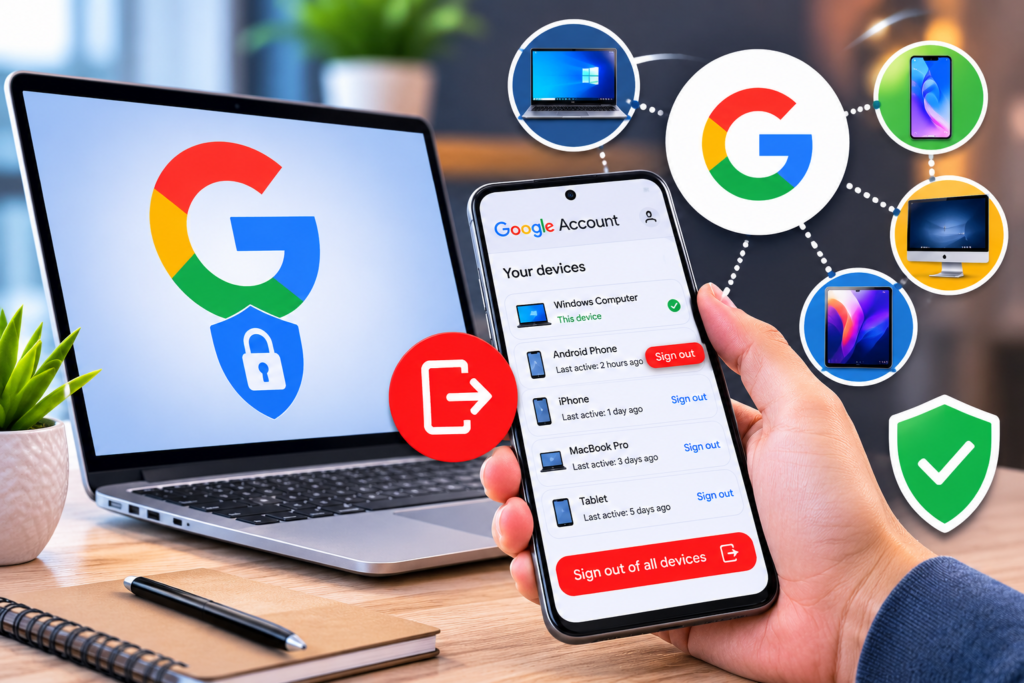
Look for the area called Your devices. You should see devices where your Google Account has recently been used.
The information can include the device type, device name, approximate location, and recent activity. The exact information shown can vary depending on the device and account activity.
Take a moment to review the list carefully. If you recognize all the devices, everything may be normal. If you see an old phone, computer, tablet, or another device that you no longer use, you can remove its account access.
How to Sign Out of Google Account From Another Device
This is the easiest method when you have access to your Google Account from another device.
First, open a browser on your phone or computer and sign in to your Google Account.
Go to the Security section and find Your devices.
Select Manage all devices to view the devices and sessions associated with your account.
Find the device from which you want to sign out. Select it to view additional information.
Look for the Sign out option and select it. Follow any confirmation that appears.
After completing the process, Google will remove your account access from that device. The person using that device should need to sign in again to access your Google Account services.
This is particularly useful when you have forgotten to sign out from a computer you used temporarily.
How to Sign Out of Google Account From Your Phone
You do not need a computer to manage your Google Account. You can perform the process from an Android phone or iPhone using a web browser.
Open your browser and sign in to your Google Account.
Open your account settings and go to Security. Find the Your devices section and select Manage all devices.
You will see the available devices and recent sessions. Select the device you want to remove.
Tap Sign out and confirm the action if Google asks you to do so.
The process is straightforward, and I find this method especially useful when I am away from my computer.
How to Sign Out of Google Account From All Other Devices
Sometimes you may not want to remove only one device. For example, if you believe your password has been exposed, you may want to review every device connected to your account.
Open your Google Account and go to Security. Under Your devices, choose Manage all devices.
Review the listed devices and sessions. Sign out of devices you do not recognize or no longer use.
If you are concerned about unauthorized access, changing your Google Account password is also a smart step. A new password can help protect your account from someone who may know your previous password.
Remember that changing your password can affect devices and services where you are signed in, so you may need to sign in again.
What Happens After You Sign Out
When you remotely sign out of your Google Account, the selected device loses access to your account.
Your Google Account itself is not deleted. Your Gmail messages, Google Drive documents, Google Photos, contacts, and other information remain associated with your account.
The device may still contain some locally stored information, depending on the application and device settings. This is why remote sign out should not be considered the same as remotely erasing a device.
If a phone or computer has been lost or stolen, use the appropriate device security features as well. For Android devices, Google’s device management tools can provide additional options depending on the device and account settings.
What to Do If You Do Not Recognize a Device
If you notice a device that you do not recognize, do not ignore it.
First, review the device information and recent activity. Sometimes an unfamiliar entry can be an old device, a browser session, or a device name you simply do not remember.
If you are confident that the device does not belong to you, sign it out.
After that, change your Google Account password. I also recommend reviewing your account security settings and enabling two step verification if it is not already enabled.
Two step verification provides another layer of protection because signing in usually requires an additional verification method beyond your password.
How to Keep Your Google Account Secure
Remote sign out is useful, but account security should be an ongoing habit.
I recommend using a strong and unique password for your Google Account. Avoid using the same password on multiple websites.
Enable two step verification for additional protection.
Check your Google Account security activity from time to time. If something looks unusual, investigate it rather than ignoring it.
Be careful when signing in on public computers. If you must use one, avoid saving passwords and remember to sign out before leaving.
Also keep your phone, computer, browser, and operating system updated. Security updates can fix vulnerabilities and improve overall protection.
Final Thoughts
Learning how to sign out of Google Account from another device is one of those simple skills that can make a big difference to your online privacy. You do not need physical access to the other phone, laptop, or computer. As long as you can access your Google Account, you can review your devices and remove access remotely.
I believe checking your connected devices regularly is a good digital security habit. If you find an old device, sign out of it. If you see something unfamiliar, investigate it and consider changing your password.
Most importantly, do not wait until your account is compromised before taking action. A few minutes spent reviewing your Google Account security settings can help protect your personal information and give you greater peace of mind.