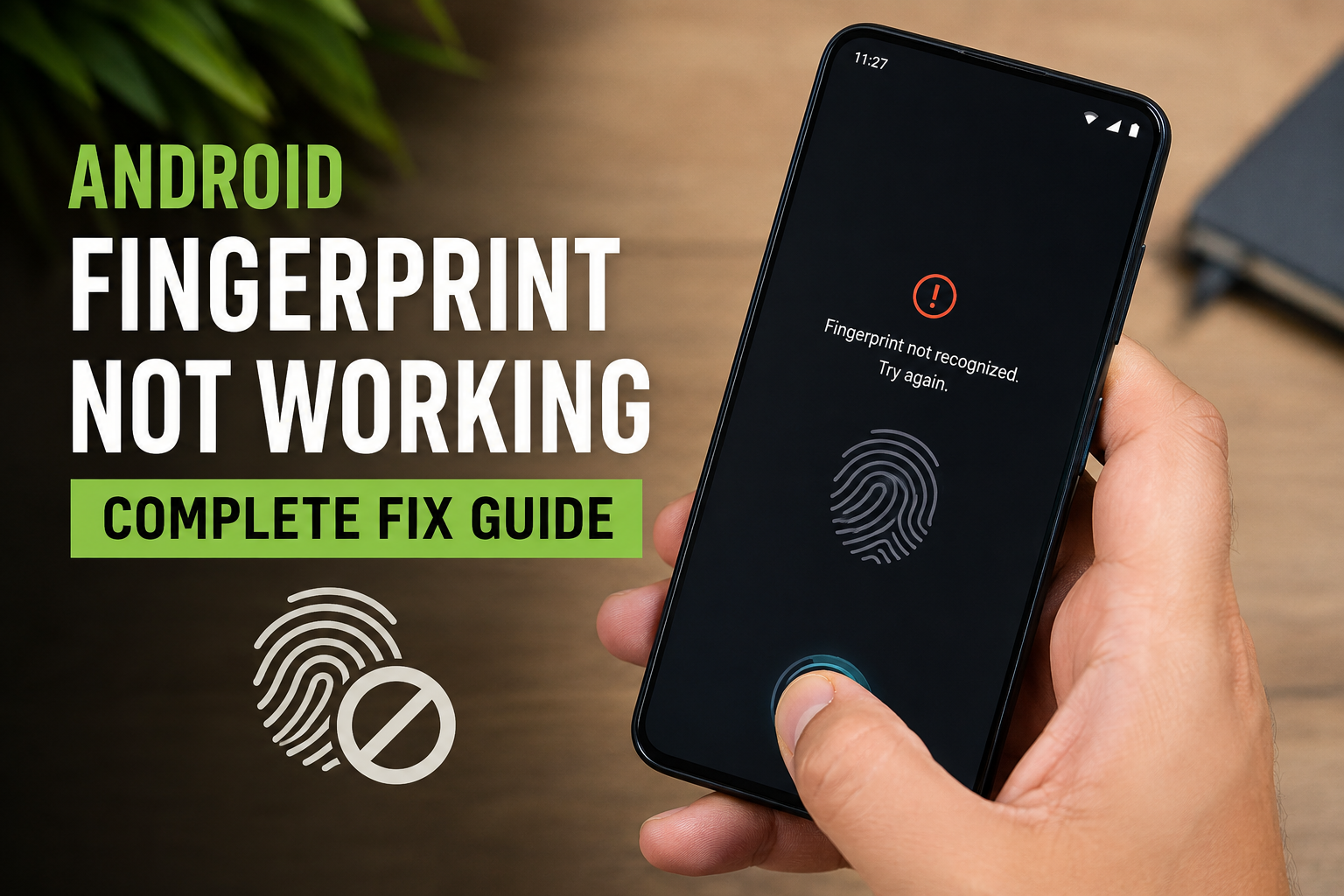
Fingerprint unlocking has become one of the easiest ways to access an Android phone. I personally find it much more convenient than entering a PIN or password every time I want to check something on my phone. However, when the Android fingerprint sensor suddenly stops working, it can become frustrating very quickly.
Sometimes the problem is caused by a dirty sensor, a wet finger, a temporary software issue, or an incorrectly registered fingerprint. In other cases, the problem may be related to a recent system update or physical damage to the phone.
In this guide, I will explain the most useful ways to fix an Android fingerprint not working problem. I will start with simple solutions and then move toward more advanced methods so you can troubleshoot the issue without immediately visiting a repair shop.
Why Is My Android Fingerprint Not Working?
There can be several reasons why your Android fingerprint sensor is not working properly. The most common reason is dirt or moisture on the fingerprint sensor or your finger. Even a small amount of water, oil, dust, or sweat can make fingerprint recognition less accurate.
Software problems are another common cause. Android sometimes experiences temporary system glitches that can affect biometric features. A recent software update can also change how the fingerprint system behaves.
Your registered fingerprint may also be the problem. If you registered your fingerprint at an unusual angle or with a dirty finger, the phone may have difficulty recognizing it later.
Physical damage should also be considered. If your phone has been dropped, exposed to water, or repaired recently, the fingerprint hardware could have been affected.
1. Clean the Fingerprint Sensor
The first thing I recommend checking is the fingerprint sensor itself. This is one of the simplest solutions and it does not require changing any settings.
Use a soft, clean, dry cloth to gently wipe the sensor. If your phone has a fingerprint sensor built into the power button, clean the entire button carefully.
If your phone has an under display fingerprint sensor, clean the screen around the fingerprint area. Avoid using excessive liquid because moisture can create another problem.
After cleaning the sensor, wash and dry your finger. Then try unlocking the phone again.
2. Make Sure Your Finger Is Clean and Dry
Your fingerprint sensor needs to read the unique lines on your finger. Moisture, sweat, oil, dust, or other substances can make this difficult.
If your finger is wet, dry it completely before trying again. At the same time, avoid using the fingerprint sensor immediately after applying hand lotion or other products.
I have found that simply cleaning and drying the finger can sometimes solve fingerprint recognition problems without changing anything on the phone.
3. Restart Your Android Phone
A simple restart can fix many temporary Android problems, including fingerprint issues.
Press and hold the power button and select the restart option if it is available. Allow the phone to shut down completely and start again.
After restarting, enter your PIN, password, or pattern once if the phone asks for it. Then test the fingerprint sensor.
This step is worth trying because biometric services run as part of the Android system, and a temporary software error can sometimes prevent them from responding correctly.
4. Try Your PIN or Password First
Android phones sometimes require you to enter your backup PIN, password, or pattern instead of using your fingerprint.
This can happen after restarting the phone or for security reasons. It does not necessarily mean that the fingerprint sensor is broken.
Enter your normal screen lock method and unlock the phone. Then lock the screen again and try the fingerprint sensor.
If fingerprint unlocking starts working normally afterward, there may not be a hardware problem at all.
5. Check Fingerprint Settings
Another important step is checking whether fingerprint unlocking is still enabled.
Open your Android phone settings and search for Fingerprint, Biometrics, or Security. The exact name can be different depending on your phone manufacturer and Android version.
Make sure fingerprint unlocking is enabled.
If your registered fingerprints are still listed, remove any fingerprint that is not working properly and register it again.
If the fingerprint option has completely disappeared from settings, that can be a more serious sign. It may indicate a software problem or a hardware issue, especially if the option was available before.
6. Delete and Register Your Fingerprint Again
If your Android fingerprint is not working, registering the fingerprint again is one of the best solutions to try.
Go to your fingerprint settings and remove the existing fingerprint. Then clean and dry your finger before starting the registration process.
When registering the fingerprint, place your finger naturally on the sensor. Do not press too hard, and do not keep your finger in exactly the same position for every scan.
Move your finger slightly during registration so the phone can record different parts of your fingerprint.
If your phone allows multiple fingerprints, you can also register the same finger more than once using slightly different angles. This can improve recognition in everyday situations.
7. Check Your Screen Protector
This is especially important for phones with an under display fingerprint sensor.
Some thick, damaged, low quality, or incorrectly installed screen protectors can interfere with fingerprint recognition. If the fingerprint sensor worked correctly before you installed a screen protector and stopped working afterward, the protector may be responsible.
Check whether there are bubbles, cracks, dirt, or thick areas directly above the fingerprint sensor.
If your phone manufacturer recommends a specific type of screen protector for fingerprint compatibility, using a suitable protector can improve performance.
8. Update Your Android Software
Software updates often include bug fixes and improvements. If fingerprint recognition stopped working after a system problem, an available update may contain a solution.
Open Settings and look for Software Update, System Update, or a similar option.
If an update is available, connect your phone to a reliable WiFi network and make sure the battery has enough charge. Install the update and restart your phone afterward.
However, if your fingerprint problem started immediately after a recent update, the issue could be related to that software version. In that situation, checking for another available update is still worth doing.
9. Check for Physical Damage
Think about what happened before the fingerprint stopped working.
Did you drop the phone recently? Did the screen crack? Was the phone exposed to water? Was the display, power button, or back panel repaired?
These details can help identify a hardware problem.
If the sensor stopped working after physical damage, software troubleshooting may not solve the issue. For example, an under display fingerprint sensor can be affected by display replacement or internal damage.
In such cases, I recommend having the phone inspected by an authorized or reputable repair center.
10. Try Safe Mode
A third party application can occasionally interfere with Android system functions.
If your phone supports Safe Mode, you can use it to check whether an installed application is causing the fingerprint problem.
In Safe Mode, many third party applications are temporarily disabled. If the fingerprint sensor works normally in Safe Mode, recently installed applications may be worth investigating.
Think about applications you installed shortly before the fingerprint problem began. Remove suspicious or unnecessary applications and restart the phone normally.
The exact method for entering Safe Mode can vary between Android manufacturers, so follow the instructions designed for your specific phone model.
11. Clear Temporary System Problems
Android creates temporary system data to help applications and services operate efficiently. Occasionally, temporary system problems can affect certain features.
Before trying complicated solutions, restart the device and install pending updates.
If your phone manufacturer provides a recovery menu with an option to clear the system cache, you may consider using it. However, be careful with recovery options because some choices can erase personal data.
Never select a factory reset option unless you understand exactly what it will do and have backed up your important information.
12. Reset App Preferences
Some Android phones provide an option to reset app preferences. This does not normally delete your personal files, photos, or documents.
It can restore certain default settings and permissions that may have been changed.
You can usually find this option under the Apps section in Settings. The exact location varies by manufacturer.
After resetting app preferences, restart the phone and test fingerprint unlocking again.
13. Factory Reset as a Last Resort
A factory reset should not be your first solution for an Android fingerprint problem.
A factory reset removes personal information, installed applications, accounts, and many device settings. Before doing this, make sure your important photos, contacts, documents, messages, and other data are backed up.
If you have already tried cleaning the sensor, restarting the phone, registering the fingerprint again, updating Android, and checking for software problems, a factory reset may be considered as a final software troubleshooting step.
If the fingerprint sensor still does not work after a clean factory reset, the possibility of a hardware problem becomes stronger.
When Should You Visit a Repair Center?
If your Android fingerprint sensor is still not working after trying the basic fixes, it may be time to get professional help.
You should especially consider professional inspection if the fingerprint option has disappeared completely, the phone was dropped, the device suffered liquid exposure, or the display was recently replaced.
Do not open the phone yourself unless you have the proper knowledge and tools. Fingerprint hardware can be connected to other important components, and improper repair can create additional problems.
If the phone is still under warranty, contacting the manufacturer or an authorized service center is usually the safest option.
Final Thoughts
An Android fingerprint not working problem does not always mean that your phone has a serious hardware fault. In many cases, the solution is surprisingly simple.
Start by cleaning the sensor and your finger. Restart the phone, check your fingerprint settings, and register your fingerprint again. If you use an under display fingerprint sensor, also check your screen protector.
After that, look for Android software updates and consider whether a recently installed application or system change may have caused the problem.
If nothing works and the fingerprint option has disappeared or the phone has suffered physical damage, professional repair may be necessary.
In my experience, it is always better to start with the simple solutions before attempting advanced troubleshooting. You can often fix fingerprint recognition without losing your personal data or spending money on repairs.
The most important thing is to troubleshoot the problem step by step. Check the physical condition first, then the fingerprint settings, followed by software related solutions. This approach makes it easier to identify the actual cause and get your Android fingerprint sensor working again.