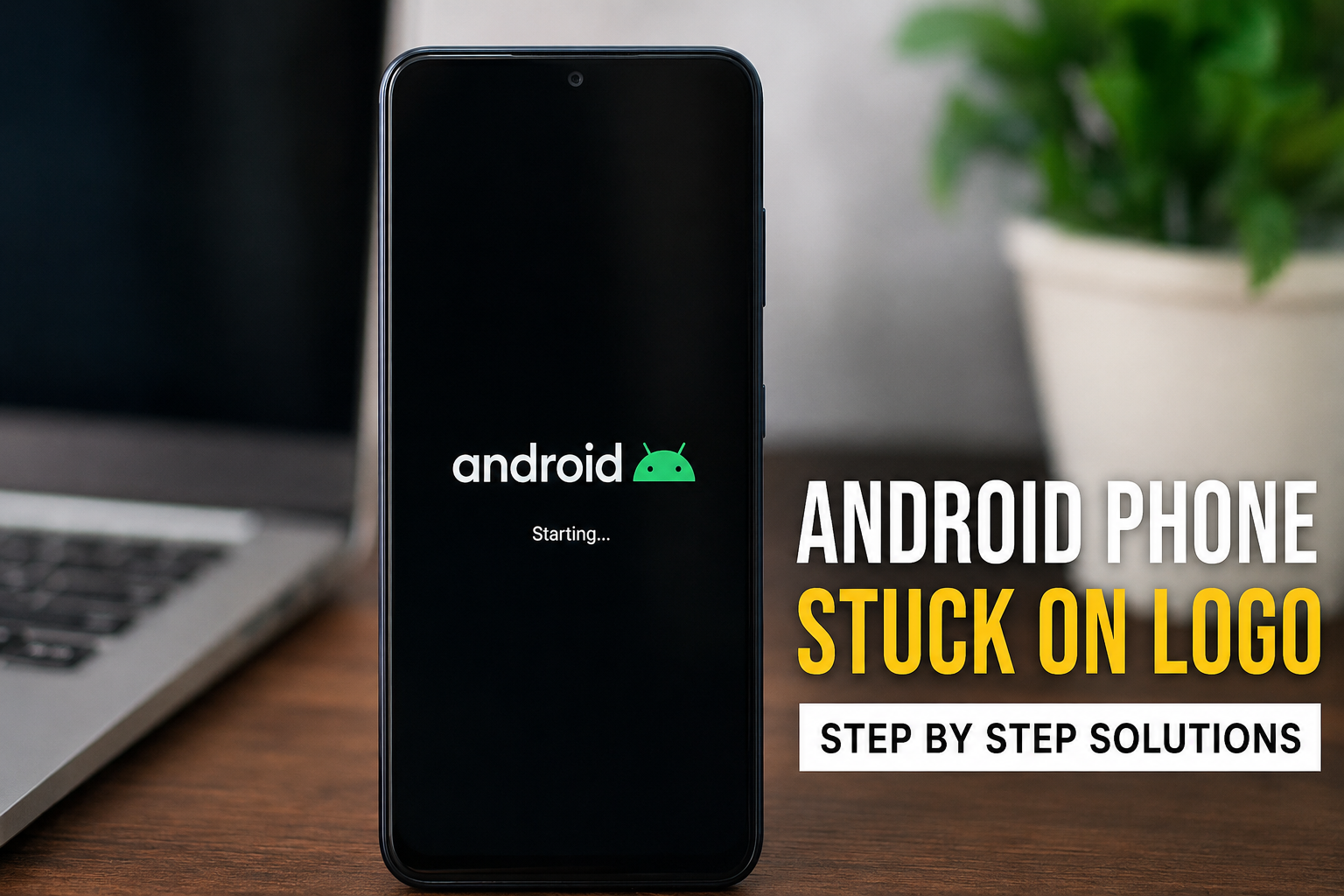
An Android phone getting stuck on the logo can be a frustrating experience, especially when you need to use your phone and it simply refuses to start. You may see the brand logo on the screen for several minutes, but the phone never reaches the lock screen. In some cases, the phone may restart again and again and keep showing the same logo.
I have seen this problem happen for different reasons. Sometimes it is caused by a temporary software problem, while in other cases a bad update, damaged system files, a problematic app, low storage, or even a hardware issue can be responsible. The good thing is that an Android phone stuck on logo does not always mean that the phone is permanently damaged.
In this guide, I will explain the most practical Android stuck on logo solutions that you can try at home. I recommend starting with the simple methods first and moving toward advanced solutions only when necessary.
Why Is My Android Phone Stuck on the Logo?
Before trying different fixes, it helps to understand why an Android phone gets stuck during startup. Your phone goes through several processes when it turns on. It checks the hardware, loads the operating system, starts important system services, and then displays the lock screen.
If something goes wrong during this process, the phone may stop at the startup logo.
Common reasons include a temporary system error, a failed software update, corrupted system files, insufficient storage, a recently installed application, battery problems, overheating, or physical damage. Rooting, custom ROMs, and other software modifications can also cause boot problems.
Sometimes the issue appears without any obvious warning. The phone may have been working normally the previous day and suddenly become stuck on the logo after restarting.
1. Wait for a Few Minutes
The first thing I recommend is patience. If your Android phone has just installed an update or performed a major system change, the first startup can take longer than usual.
Leave the phone on the logo screen for around 10 to 15 minutes. Make sure it has enough battery power and avoid repeatedly pressing the power button.
If the phone eventually reaches the lock screen, the problem may have been caused by a slow startup process. If nothing changes after a reasonable amount of time, continue with the next solution.
2. Charge Your Android Phone
A weak or completely drained battery can sometimes make the startup process behave strangely. Connect your phone to a reliable charger and let it charge for at least 20 to 30 minutes.
If possible, use the original charger and cable that came with the device. You can also try another compatible charger if you suspect that your current charger is not working properly.
After charging, try turning the phone on again.
If there is no charging symbol or the phone does not respond at all, the issue may be related to the charger, charging port, battery, or another hardware component.
3. Perform a Force Restart
A force restart is one of the easiest solutions when an Android phone is stuck on the logo. It does not normally erase your personal data, so it is a good step to try before more advanced troubleshooting.
On many Android phones, press and hold the Power button for about 10 to 20 seconds. Some devices require you to hold the Power and Volume Down buttons together.
Keep holding the buttons until the phone vibrates, turns off, or shows the startup logo again.
The exact button combination can vary between manufacturers and models. If the first combination does not work, check the instructions for your specific phone model.
4. Remove the SIM Card and Memory Card
A damaged or incorrectly detected memory card can sometimes interfere with startup. While this is not the most common reason for an Android phone stuck on logo, it is simple enough to test.
Turn the phone off if possible and remove the SIM card and microSD card. Then try starting the phone without them.
If the phone starts normally, insert the cards one at a time to find out which one may be causing the problem.
If your phone does not have a removable memory card, simply skip this step.
5. Try Safe Mode
Safe Mode is useful when a third party application is causing startup problems. In Safe Mode, Android loads the basic system software without starting most third party applications.
The method for entering Safe Mode varies depending on the Android manufacturer. On many devices, you can start the phone and hold the Volume Down button while the device is booting. If successful, you should see a Safe Mode indicator on the screen.
If your phone starts successfully in Safe Mode, a recently installed or updated application may be responsible.
Think about which applications you installed shortly before the problem started. Uninstall suspicious or recently installed apps, then restart the phone normally.
If the phone works normally after removing the problematic app, you have probably found the cause.
6. Clear the Cache
Another useful Android stuck on logo solution is clearing the system cache through recovery mode. This can help when temporary system files have become corrupted.
The process differs between Android manufacturers, so the exact button combination is not the same on every phone.
Generally, you need to turn off the device and enter recovery mode using a combination of the Power and Volume buttons. Once recovery mode appears, look for an option related to clearing the cache if your device provides one.
Be careful when navigating recovery mode. Do not select factory reset unless you understand that it can erase your personal data.
After clearing the cache, select the option to restart the device.
7. Check Available Storage
Low storage can cause many Android problems. If your phone was almost completely full before it became stuck on the logo, storage could be part of the problem.
Android needs some free space to perform system operations and create temporary files. When storage becomes extremely limited, the operating system may not work correctly.
If you can access Safe Mode or recovery tools that allow you to manage storage, remove unnecessary files where appropriate.
Going forward, I recommend keeping some free storage available instead of filling the phone completely. Removing unused videos, downloads, duplicate photos, and applications can help maintain better performance.
8. Think About Recent Software Updates
If the Android phone became stuck on the logo immediately after a software update, the update may not have completed correctly.
Do not immediately assume that the phone is permanently damaged. Sometimes a restart or recovery procedure can resolve the problem.
If the device repeatedly fails to boot after an update, you may need manufacturer specific recovery tools or official service support.
I strongly recommend avoiding random firmware files from unknown websites. Installing the wrong firmware can create additional problems and may result in data loss.
9. Factory Reset as a Last Resort
If none of the previous methods work, a factory reset may be necessary.
A factory reset removes user data and returns the phone to its original software state. This means your applications, settings, and locally stored personal files may be deleted.
For that reason, I would never recommend starting with a factory reset.
Before choosing this option, try every safer solution available. If your phone can still access its data through another method, back up important photos, contacts, documents, and other files first.
If the phone remains completely stuck and there is no way to back up the data, consider professional assistance before performing the reset.
10. Visit a Professional Repair Center
If your Android phone is still stuck on the logo after trying software solutions, hardware could be involved.
A failing battery, damaged storage chip, motherboard problem, water damage, or physical impact can cause boot problems. This becomes especially important if the phone was dropped, exposed to liquid, became unusually hot, or suddenly stopped working.
In this situation, I would avoid repeatedly forcing the phone to restart. Take it to a reputable repair center or the manufacturer’s authorized service provider.
A technician can perform proper hardware testing and determine whether the issue is software related or caused by a physical component.
How to Prevent Android Boot Problems
You cannot prevent every Android startup problem, but a few habits can reduce the chances of experiencing one.
Keep Android and your applications updated through official sources. Avoid installing applications from suspicious websites. Keep enough free storage available. Use reliable chargers and cables, and avoid exposing the phone to excessive heat or moisture.
I also recommend maintaining regular backups of important files. A backup may not prevent a phone from getting stuck on the logo, but it can make the situation much less stressful if a factory reset or repair becomes necessary.
Frequently Asked Questions
Why is my Android phone stuck on the logo?
An Android phone can become stuck on the logo because of temporary software errors, failed updates, corrupted system files, problematic applications, low storage, battery problems, or hardware damage.
Will a force restart delete my data?
A normal force restart does not usually erase personal data. It simply forces the phone to restart when the operating system is not responding correctly.
Can Safe Mode fix an Android phone stuck on the logo?
Safe Mode can help identify problems caused by third party applications. If the phone starts normally in Safe Mode, a recently installed application may be responsible.
Does a factory reset fix the Android boot loop?
A factory reset can fix some software related boot problems, but it should be considered a last resort because it can erase personal data stored on the device.
What should I do if nothing works?
If charging, force restarting, Safe Mode, and other basic troubleshooting methods do not work, professional diagnosis may be the safest option. The problem could involve hardware or severely corrupted system software.
Final Thoughts
An Android phone stuck on the logo can look like a serious problem, but in many cases there is a straightforward solution. I recommend starting with the basics, such as charging the phone, performing a force restart, removing the memory card, and trying Safe Mode. These steps are simple and usually do not put your personal data at unnecessary risk.
If the problem started after an update or application installation, pay particular attention to software related causes. More advanced options such as recovery mode and factory reset should be approached carefully.
The most important thing is not to panic or immediately erase the phone. Take the troubleshooting process step by step. If none of the software solutions work, getting the device checked by a qualified technician can save you from making the problem worse.
With the right approach, many Android phones stuck on the startup logo can be brought back to normal without replacing the entire device.