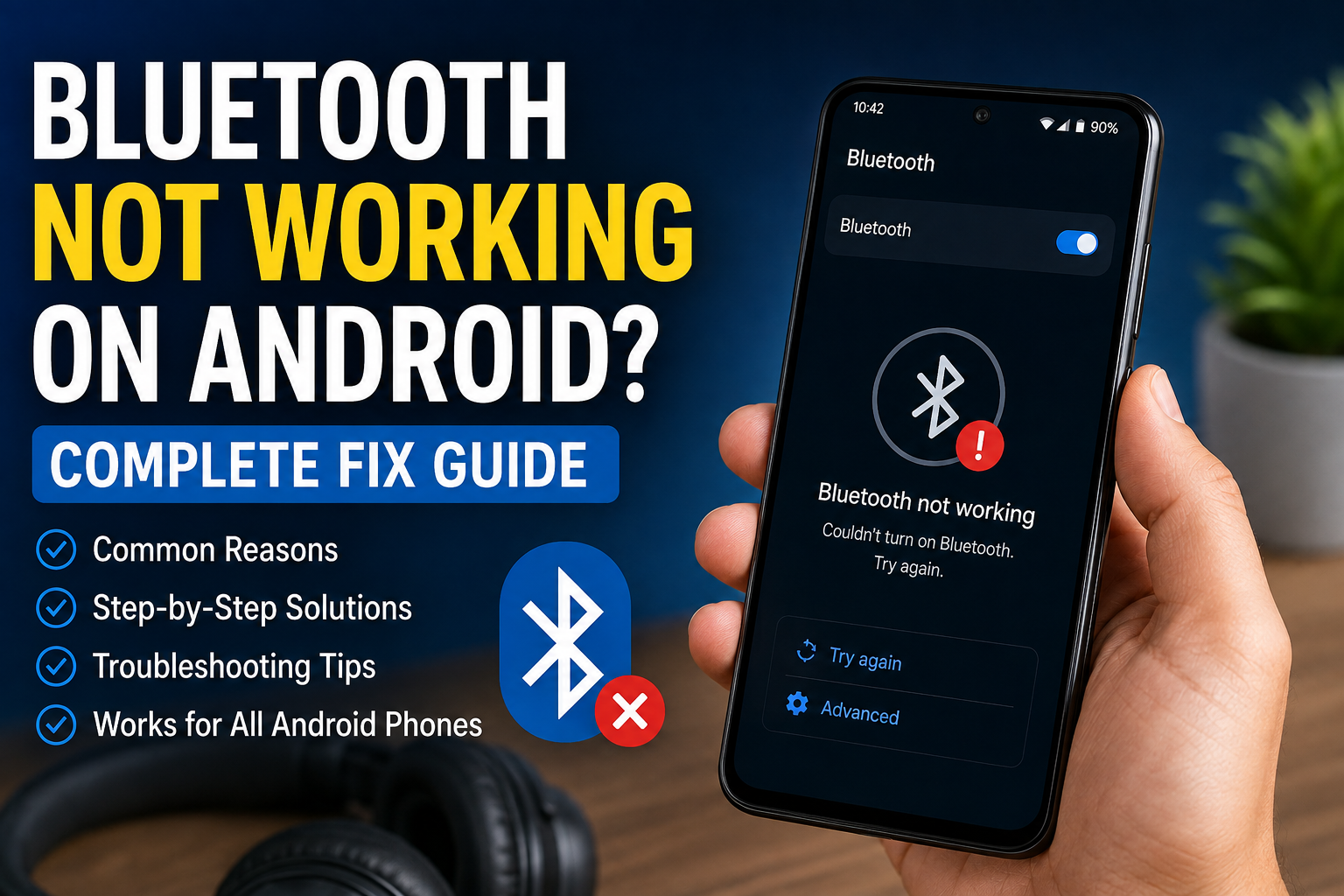
Bluetooth is one of those Android features that most of us use without thinking about it. I use Bluetooth for wireless earbuds, speakers, smartwatches, cars, keyboards, and many other devices. So when Bluetooth suddenly stops working, it can become really frustrating.
Sometimes the problem is simple. Bluetooth may be turned off, the connected device may not be in pairing mode, or the phone may have a temporary software problem. In other situations, the issue can be caused by old Bluetooth connections, corrupted network settings, outdated software, or compatibility problems.
If Bluetooth is not working on your Android phone, do not worry. In this guide, I will share the practical solutions I would try myself, starting with the easiest fixes and moving toward more advanced troubleshooting methods.
Why Is Bluetooth Not Working on Android?
There can be several reasons why Bluetooth is not working properly on an Android phone.
The Bluetooth feature may have a temporary software glitch. Your phone may also be connected to another Bluetooth device in the background. Sometimes the accessory itself is the problem rather than the phone.
Other common causes include low battery on wireless accessories, pairing problems, outdated Android software, corrupted network settings, interference from nearby devices, or an old Bluetooth connection that needs to be removed and created again.
If Bluetooth will not turn on at all, the problem may be related to the Android system. If Bluetooth turns on but cannot find your headphones or speaker, the problem is more likely related to pairing or device compatibility.
Restart Your Android Phone
The first thing I recommend is restarting your phone.
A restart can clear temporary system glitches and refresh background services, including Bluetooth related processes. It is a simple solution, but it is surprisingly useful for many Android problems.
Press and hold the power button and select Restart. After your phone starts again, open Bluetooth settings and try connecting your device.
If Bluetooth starts working normally, the problem was probably temporary.
Turn Bluetooth Off and On Again
Before making complicated changes, try refreshing the Bluetooth connection.
Open Quick Settings and turn Bluetooth off. Wait for several seconds and then turn it back on.
You can also open Settings and go to Connected Devices or Bluetooth, depending on your Android phone.
After enabling Bluetooth, wait a few seconds and check whether your wireless device appears.
Sometimes the Bluetooth service simply needs to restart, and this quick method can solve the issue.
Check the Bluetooth Device
It is easy to assume that the phone is responsible for the problem, but the connected device could be causing the issue.
Check whether your headphones, earbuds, speaker, smartwatch, or other accessory is turned on.
Make sure it has enough battery. Many Bluetooth accessories behave strangely when their battery is almost empty.
If the device has a power button, turn it off and back on. If it has a dedicated pairing button, press it according to the manufacturer’s instructions.
I always check the accessory first because it can save a lot of unnecessary troubleshooting.
Make Sure the Device Is in Pairing Mode
A Bluetooth accessory usually needs to be in pairing mode before your Android phone can discover it.
For example, some wireless earbuds enter pairing mode automatically when you open their charging case. Other devices require you to press and hold a button.
Look for a flashing indicator light or another sign that the device is ready to pair.
Then open Bluetooth settings on your Android phone and wait for the accessory to appear under available devices.
Forget the Bluetooth Device and Pair Again
If your Android phone sees the device but refuses to connect, forgetting the old connection can often help.
Open Settings and go to Bluetooth or Connected Devices. Find the problematic device and select the settings icon beside it.
Choose Forget, Unpair, or Remove, depending on your phone.
After removing the device, put your headphones, speaker, or other accessory into pairing mode again.
Search for it from your Android phone and connect from scratch.
This method is particularly useful when the device was previously connected but suddenly stopped working.
Turn Airplane Mode On and Off
Another simple method is refreshing the phone’s wireless connections through Airplane Mode.
Open Quick Settings and turn Airplane Mode on. Wait about ten seconds and turn it off again.
Then enable Bluetooth and try connecting your device.
This can refresh several wireless services at once and may solve temporary connection problems.
Keep the Devices Close Together
Bluetooth has a limited effective range, and physical obstacles can affect the connection.
When troubleshooting, keep your Android phone and Bluetooth accessory close together.
Avoid testing the connection from another room or behind thick walls. Start with the devices only a short distance apart.
If the connection works when the devices are close but becomes unstable farther away, the problem may be related to distance, interference, or the accessory’s Bluetooth hardware.
Disconnect Other Bluetooth Devices
Your Android phone may already be connected to another Bluetooth accessory.
Check the Bluetooth settings and see whether another device is currently connected.
Disconnect unnecessary devices temporarily and then try connecting the accessory that is giving you trouble.
This is especially useful when you have several wireless devices nearby, such as earbuds, watches, speakers, and car systems.
Clear Bluetooth Related Settings
If Bluetooth continues to behave strangely, resetting wireless settings can help.
Android phones usually provide a network reset option under Settings. Depending on the manufacturer, it may be called Reset WiFi, Mobile and Bluetooth or Reset Network Settings.
This does not normally remove your personal photos or applications, but it can remove saved WiFi networks, Bluetooth pairings, and certain network preferences.
Because the exact options vary between phones, read the confirmation screen carefully before proceeding.
After resetting the settings, restart your phone and pair your Bluetooth device again.
Update Your Android Phone
An outdated Android version can sometimes cause compatibility problems with newer Bluetooth accessories.
Open Settings and check for a system software update. If an update is available, install it when convenient.
Software updates often include bug fixes and improvements for wireless connectivity, security, and system stability.
I recommend keeping your phone updated, especially if Bluetooth problems started after installing a new application or connecting to a newer accessory.
Update the Bluetooth Accessory
The accessory may also need an update.
Some wireless headphones, earbuds, smartwatches, speakers, and car systems receive firmware updates through their companion applications.
Check the manufacturer’s official application to see whether a firmware update is available.
Keeping both the Android phone and Bluetooth accessory updated can improve compatibility and connection stability.
Check Battery Saver Settings
Battery saving features can sometimes affect background activity and wireless connections.
If your Bluetooth device disconnects frequently, check your phone’s battery settings.
You can also check whether the companion application for your Bluetooth accessory has restricted background activity.
Do not disable battery saving features everywhere. Instead, test the settings for the specific application or device that is having problems.
Check for Physical Interference
Bluetooth uses wireless signals, so interference from nearby electronics can sometimes affect performance.
When testing Bluetooth, move away from crowded wireless environments if possible.
Keep the phone and accessory close together and remove unnecessary electronic devices from the immediate area.
If Bluetooth works perfectly in one location but becomes unreliable in another, interference may be contributing to the problem.
Test With Another Bluetooth Device
One of the best troubleshooting methods is testing another Bluetooth accessory.
For example, if your headphones will not connect, try connecting a Bluetooth speaker or another pair of headphones.
If the second device connects successfully, your original accessory may be the problem.
If no Bluetooth device can connect, the problem is more likely related to your Android phone.
This simple test can help you avoid spending time changing phone settings when the real problem is with the accessory.
Check Safe Mode
If Bluetooth problems started after installing a third party application, Safe Mode can help you investigate.
Safe Mode temporarily disables most third party applications. The exact method for entering Safe Mode varies by Android manufacturer.
Once in Safe Mode, test your Bluetooth connection.
If Bluetooth works normally, a recently installed application could be interfering with your phone’s wireless functions.
Restart the phone normally and consider removing applications installed around the time the Bluetooth problem began.
Reset Your Android Phone as a Last Resort
If nothing else works and Bluetooth problems affect multiple devices, a factory reset may be a final software troubleshooting option.
I would only consider this after trying the other solutions.
A factory reset removes personal data, applications, settings, and other information from the phone. Before doing it, create a complete backup of important photos, contacts, documents, messages, and other files.
After resetting the phone, test Bluetooth before installing all your applications again.
If Bluetooth still does not work after a clean reset, the problem may be hardware related.
When to Get Professional Help
If Bluetooth will not turn on at all, disappears from the settings, or continues failing after a factory reset, professional assistance may be necessary.
A hardware problem involving the phone’s wireless components could be responsible.
You should also consider professional help if the phone has recently suffered physical damage, water exposure, or a serious drop.
In these situations, repeatedly changing software settings is unlikely to solve the underlying problem.
Final Thoughts
Bluetooth not working on Android can be annoying, but I would not immediately assume that your phone has a serious problem.
Start with the simple solutions. Restart the phone, turn Bluetooth off and on, check the accessory’s battery, make sure pairing mode is enabled, and keep both devices close together.
If that does not work, forget the Bluetooth device and pair it again. You can then move on to updating Android, updating the accessory, checking battery settings, testing another Bluetooth device, and resetting wireless settings.
The most important thing is to troubleshoot one step at a time. This makes it easier to identify the actual cause instead of changing several settings at once.
In my experience, most Bluetooth problems are caused by pairing issues, temporary software glitches, outdated software, or problems with the accessory itself. With a little patience, you can often restore Bluetooth connectivity without needing professional repair.