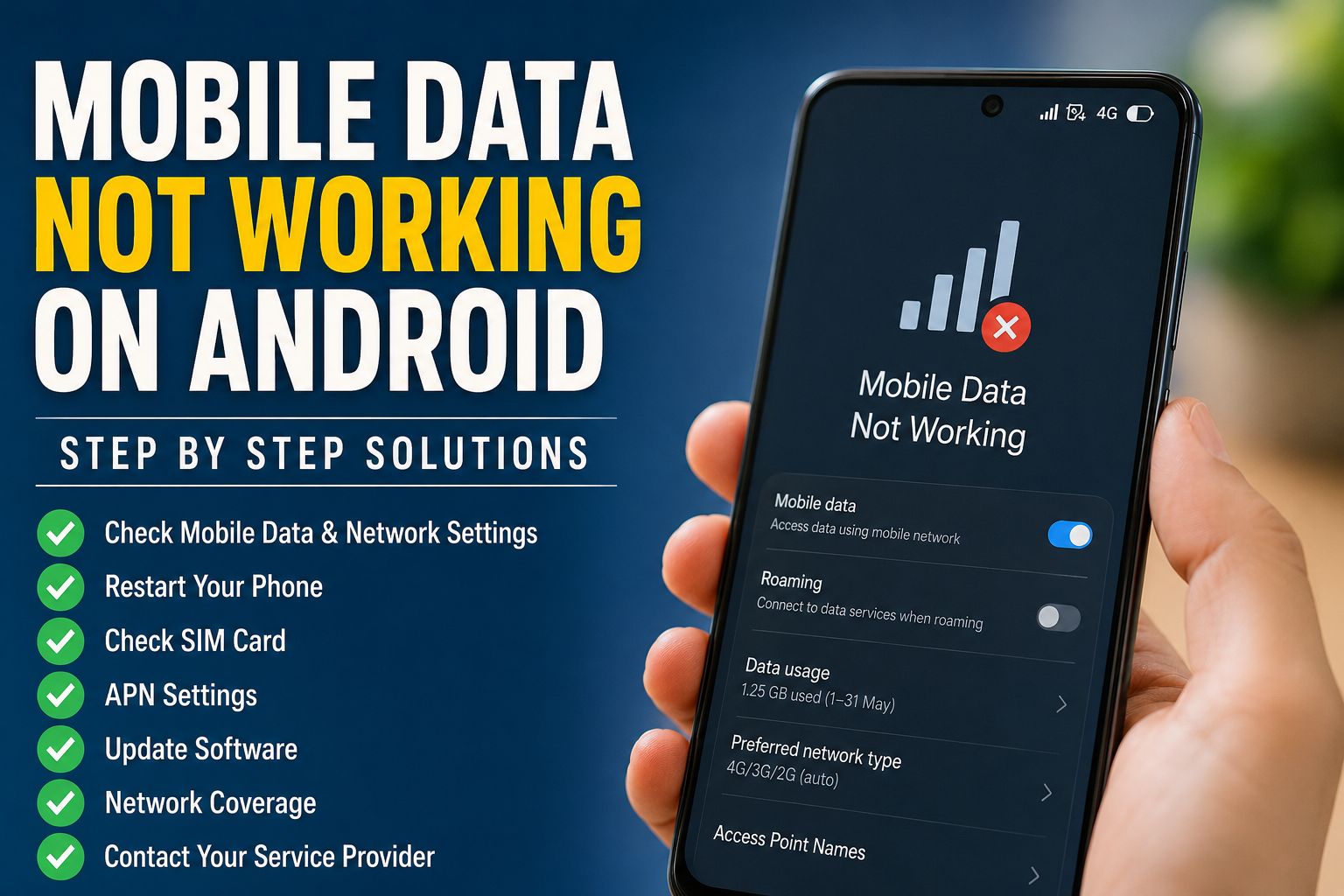
Mobile data is one of those features I usually do not think about until it suddenly stops working. When WiFi is not available and your Android phone refuses to connect to the internet, even simple tasks like checking email, opening a website, using maps, or sending a message can become frustrating.
If you are dealing with mobile data not working on Android, there is no need to panic. In many cases, the problem is caused by a simple setting, weak network coverage, an exhausted data package, a temporary network problem, or an issue with the SIM card.
From my experience, I always recommend checking the simple things first instead of immediately changing advanced network settings. In this guide, I will explain the most useful solutions I would try when Android mobile data is not working.
Why Is Mobile Data Not Working on Android?
There can be several reasons why mobile data stops working.
The mobile data option may be turned off. Your phone could also be connected to a network with poor coverage. Sometimes the SIM card is not registered correctly with the network, or your data package has expired.
Other possible causes include incorrect APN settings, incorrect network mode, roaming settings, a temporary carrier problem, software bugs, or restrictions placed on mobile data usage.
The good thing is that most of these problems can be checked without visiting a repair shop.
1. Check If Mobile Data Is Turned On
The first thing I would check is the mobile data setting.
Open your Android phone settings and look for the network or SIM card section. Make sure Mobile Data is enabled.
You can also pull down the quick settings panel and look for the mobile data icon.
Sometimes mobile data gets turned off accidentally when changing settings or using battery saving features. Turning it on again may immediately solve the problem.
After enabling mobile data, wait a few seconds and check whether the internet starts working.
2. Check Airplane Mode
Airplane Mode can disconnect your phone from cellular networks.
Open the quick settings panel and make sure Airplane Mode is turned off.
If it is already off, I sometimes recommend turning it on for about ten seconds and then turning it off again. This forces the phone to disconnect and reconnect to the cellular network.
After disabling Airplane Mode, give the phone a few seconds to find the network.
This simple trick can fix temporary network connection problems without changing any important settings.
3. Restart Your Android Phone
A restart can solve many temporary Android problems.
If mobile data suddenly stopped working, restart your phone and wait for the network signal to return.
Restarting clears temporary system processes and gives the cellular connection a fresh start.
I usually recommend trying this early in the troubleshooting process because it is quick and does not delete your personal files.
Once the phone restarts, check the signal bars and try opening a website using mobile data.
4. Check Your Mobile Network Signal
Look at the signal indicator at the top of your screen.
If you have very weak signal or no signal at all, mobile data may not work properly even when every phone setting is correct.
Try moving outdoors or going to another location with better network coverage.
Buildings, underground areas, remote locations, and crowded places can sometimes affect cellular service.
If calls and text messages are also not working, the problem may be related to network coverage or your mobile carrier rather than your Android phone.
5. Check Your Data Package
This is one of the easiest things to overlook.
If your mobile data suddenly stops working, check whether your internet package is still active. Some carriers stop mobile internet when the available data has been used.
You can check your remaining data through your carrier application, website, USSD service, or customer support.
Also check whether your account has sufficient balance if you are using a prepaid connection.
Before changing complicated Android settings, I always think it is worth confirming that your cellular service is active.
6. Check the SIM Card
A SIM card problem can also cause mobile data issues.
Turn off your phone if necessary and check whether the SIM card is correctly inserted.
If your Android phone has a removable SIM tray, carefully remove the SIM card and inspect it for visible damage or dirt. Reinsert it correctly and restart the phone.
If possible, test the SIM card in another compatible phone.
You can also test another working SIM card in your Android phone. This can help determine whether the problem is related to the phone or the SIM card.
7. Check the Preferred Network Type
Your phone may be using an unsuitable network mode.
Open your mobile network settings and look for an option such as Preferred Network Type or Network Mode.
Depending on your phone and carrier, available options may include 5G, 4G, 3G, and 2G.
If your phone is set to a network type that is unavailable in your current location, mobile data may not work correctly.
I generally recommend using the automatic network option when it is available. This allows the phone to select an appropriate network based on local availability and your carrier.
8. Check APN Settings
APN stands for Access Point Name. These settings help your Android phone connect to your carrier’s mobile internet service.
If the APN information is incorrect, mobile data may stop working even though the phone shows a cellular signal.
Open the mobile network settings and find the Access Point Names section.
Do not randomly enter APN information from an unknown website. Different carriers use different settings.
If your APN appears incorrect, contact your mobile service provider and ask for the correct configuration.
Some Android phones also provide an option to reset APN settings to the default configuration.
9. Turn Data Roaming On When Necessary
If you are traveling outside your normal network area or country, mobile data may require roaming.
Open your SIM or mobile network settings and check the data roaming option.
Keep in mind that roaming can result in additional charges depending on your carrier and plan. I would always check your carrier’s roaming policy before enabling it.
If you are not traveling and your normal local network is not working, turning roaming on is usually not the first solution I would recommend.
10. Check Data Usage Restrictions
Android includes settings that can limit how much mobile data applications use.
Open your network settings and review your data usage options.
Check whether a data limit has been reached or whether a data warning is preventing normal usage.
You should also check whether the specific application you are trying to use is allowed to access mobile data.
If websites work but one particular application does not, the issue may be with that application rather than your mobile connection.
11. Turn Off Battery Saver Temporarily
Battery saving features can sometimes restrict background activity and certain network functions.
If you have aggressive battery saving enabled, temporarily turn it off and test mobile data again.
This does not mean battery saving is bad. It can be very useful when your battery is low. However, when troubleshooting a network problem, temporarily disabling it can help determine whether a power management setting is involved.
12. Reset Network Settings
If none of the basic solutions work, resetting network settings is one of the more useful advanced steps.
Android phones usually include a network reset option somewhere in the system settings.
The exact location varies by manufacturer.
A network reset can remove saved WiFi connections, Bluetooth connections, and certain cellular network settings. Therefore, make sure you know your important WiFi passwords before using this option.
After the reset, restart the phone and allow it to reconnect to your mobile network.
This can fix problems caused by incorrect or corrupted network configurations.
13. Update Your Android Software
Software updates can contain important bug fixes and network improvements.
If your phone has a pending system update, install it when you have a stable WiFi connection and enough battery.
Also keep your important applications updated.
If the mobile data problem started immediately after a software update, however, pay attention to the timing. It may be useful to check whether other users with the same phone model are reporting similar network problems.
14. Test Mobile Data With Another Application
Sometimes the mobile connection is working, but a particular application is having trouble.
Try opening several different websites or applications.
For example, if your browser cannot connect but another application works normally, the problem may be limited to the browser.
You can try closing the application, clearing its cache, updating it, or reinstalling it if necessary.
Testing more than one application helps you avoid blaming the entire mobile network for an application specific problem.
15. Check With Your Mobile Carrier
If you have tried everything and mobile data still does not work, the issue could be with your carrier.
There may be maintenance, a temporary outage, account restrictions, SIM registration problems, or network issues in your area.
Contact your mobile service provider and explain exactly what is happening.
Tell them whether calls and text messages work, whether you have a signal, and whether mobile data stopped suddenly or gradually.
These details can help the carrier identify the problem more quickly.
When Should You Get Professional Help?
If mobile data works normally with another phone but not with your Android device, there could be a problem with the phone itself.
Hardware damage is less common than incorrect settings, but it can happen.
If the phone has recently been dropped, exposed to water, or repaired, cellular hardware could potentially be involved.
Before paying for a repair, I would test the SIM card in another phone and try another working SIM in your Android phone. These tests can provide useful information about where the problem is coming from.
How to Prevent Mobile Data Problems
I believe a few simple habits can prevent many mobile data problems.
Keep your Android software updated and regularly check your data usage. Make sure your SIM card is in good condition and avoid changing APN settings unless you know exactly what you are doing.
If you travel, check your roaming settings and carrier plan before leaving.
It is also useful to know your carrier’s customer support options so you can quickly check for outages or account problems.
Final Thoughts
When mobile data is not working on Android, I recommend taking a calm and simple approach. Start by checking mobile data, Airplane Mode, signal strength, your data package, and the SIM card.
If those things look normal, move toward network mode, APN settings, data restrictions, battery saving features, and network settings.
Most importantly, do not change several advanced settings at the same time. Make one change, test the connection, and then move to the next step. This makes it much easier to identify the actual cause.
In my view, the most common solutions are surprisingly simple. A restart, reconnecting to the cellular network, checking the data package, or correcting a network setting can sometimes bring mobile internet back within minutes.
If nothing works, contacting your carrier is the sensible next step. And if the SIM works perfectly in another phone while your Android device still refuses to connect, professional inspection may be necessary.
With these Android mobile data troubleshooting steps, you can usually identify whether the problem comes from your phone settings, SIM card, carrier, software, or network coverage without immediately spending money on a repair.