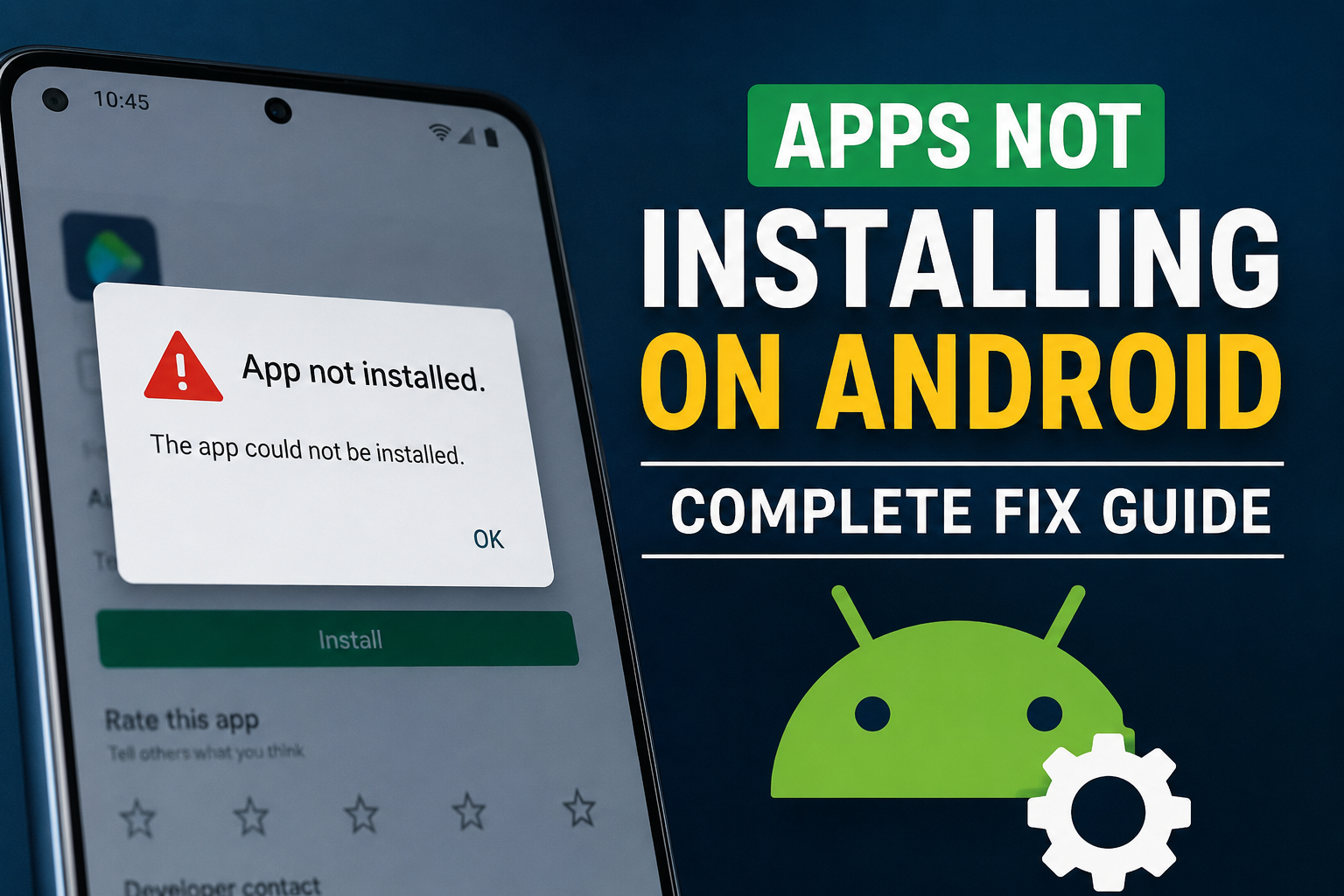
One of the most frustrating Android problems is trying to install an app and getting an error instead. Sometimes the Google Play Store keeps showing “Pending” and never starts the download. In other situations, the app downloads but refuses to install. I have seen this problem happen for several different reasons, and in my experience, it is usually possible to fix it without resetting the phone.
If apps are not installing on your Android phone, the problem could be related to storage, internet connection, Google Play Store, software settings, compatibility, or a temporary system issue. In this guide, I will share the practical solutions I would try first, starting with the easiest ones.
Why Are Apps Not Installing on Android?
There is no single reason why Android apps fail to install. The most common causes include insufficient storage, unstable internet, problems with Google Play Store, outdated Android software, incorrect date and time settings, corrupted cache, or an app that is not compatible with your phone.
Sometimes the problem is caused by a temporary Google Play Store error. At other times, the phone itself needs attention.
I recommend starting with basic checks instead of immediately making major changes to the device.
Check Your Internet Connection
The first thing I would check is the internet connection. Although the Google Play Store can sometimes display an installation problem, the real issue may simply be an unstable connection.
Open a website or another online application and see whether the internet is working normally. If pages are loading slowly, try switching between WiFi and mobile data.
If you are using WiFi, restart your router and reconnect your phone. If you are using mobile data, make sure your data connection is active and that your data plan allows downloads.
A stable internet connection is especially important when downloading large applications or games.
Check Available Storage
Low storage is one of the most common reasons apps do not install on Android.
Even if an app requires only a certain amount of space, Android may need additional temporary storage while downloading and installing it. This means that having very little free space can prevent installation.
Open your phone’s Settings and check the Storage section. If your phone is almost full, remove unnecessary videos, duplicate photos, old downloads, and applications that you no longer use.
I usually recommend keeping some free space available rather than filling the phone completely. This can also help Android run more smoothly.
After freeing up storage, restart the phone and try installing the application again.
Restart Your Android Phone
A simple restart can fix surprisingly many Android problems.
If an app is not installing, close the Play Store and restart your phone. Once the phone starts again, open Google Play Store and try the installation one more time.
Restarting clears temporary processes and can resolve small software glitches that may be preventing the installation process from working correctly.
It is a basic solution, but I would always try it before moving on to more complicated troubleshooting.
Clear Google Play Store Cache
A corrupted cache can sometimes cause problems with downloading and installing applications.
To clear the cache, open Settings and go to Apps. Find Google Play Store, open its storage options, and select Clear Cache.
The exact menu names can be slightly different depending on your Android phone.
Clearing the cache does not normally remove your installed applications or personal files. It simply removes temporary data used by the Play Store.
After clearing the cache, open Google Play Store again and try installing the app.
Clear Google Play Services Cache
Google Play Services is an important part of the Android ecosystem and works behind the scenes with many applications and Google services.
If the Play Store is still not installing apps after clearing its cache, you can also check Google Play Services in your phone’s app settings.
Look for its storage information and clear the cache if the option is available.
I would avoid changing advanced settings unless you understand what they do. Start with clearing temporary cache data and then test the Play Store again.
Check Google Play Store Updates
Sometimes the Play Store itself may need an update.
Open Google Play Store and go to your account settings. Look for the Play Store version information and check whether an update is available.
Keeping the Play Store updated can help improve compatibility and resolve bugs that may affect app downloads and installations.
After updating, give the phone a moment to complete the process before trying to install the application again.
Check Your Date and Time
Incorrect date and time settings can cause unexpected problems with Google services.
I recommend opening your Android settings and enabling automatic date and time if that option is available.
The phone should normally use the network to set the correct time and date. Once the settings are corrected, restart the Play Store and try again.
This is a small setting, but it can sometimes make a difference when Google services are not behaving normally.
Restart Google Play Store
If the Play Store appears stuck, you can force it to stop and then open it again.
Go to Settings, open Apps, select Google Play Store, and choose Force Stop if your phone provides that option.
Then open Google Play Store normally.
This stops the current Play Store process and starts it again from the beginning. It can help when the application has become stuck during a download or installation.
Check App Compatibility
Another important possibility is that the application may not be compatible with your Android phone.
Some applications require a specific Android version or certain hardware capabilities. An app designed for a newer version of Android may not work correctly on an older phone.
Check the application’s information in the Play Store and see whether your device meets its requirements.
If the Play Store says that the app is not compatible with your device, trying random settings may not solve the problem. You may need a compatible version or a newer device.
Update Android Software
An outdated Android version can sometimes cause installation and compatibility problems.
Open Settings and check for a System Update or Software Update. If an official update is available, consider installing it after backing up important information.
System updates can include security improvements, bug fixes, compatibility improvements, and changes that help applications work properly.
I recommend keeping Android reasonably up to date whenever your device supports official updates.
Check Google Account Issues
Your Google account is closely connected with Google Play Store. If there is a temporary account synchronization problem, app downloads may not work properly.
Check whether other Google services are working correctly. You can also open your account settings and make sure your Google account is properly synchronized.
If everything else fails, removing and adding the Google account again can sometimes resolve deeper Play Store issues. However, I would save this step for later because it requires more attention than simply clearing a cache.
Check Download Manager
Android uses system components to manage downloads. If the Download Manager has been disabled or is experiencing a problem, applications may fail to download.
Open Settings, go to Apps, and check system applications if your phone provides that option. Look for Download Manager or a similarly named download service.
Make sure it has not been disabled.
The exact location and name can vary between Android manufacturers, so do not worry if you cannot find the same option on your particular phone.
Try Installing Another App
A useful troubleshooting method is to try installing a different small application.
If another app installs successfully, the original application may have a compatibility problem or a temporary issue.
If no apps are installing, the problem is more likely related to your Play Store, internet connection, storage, Google account, or Android system.
This simple test can help narrow down the cause without making unnecessary changes.
Check If Download Is Stuck on Pending
If your application stays on “Pending,” check whether other downloads are already running.
Google Play Store may be waiting for another application or update to finish. Open the Play Store and check your pending downloads.
You can pause unnecessary updates and allow the application you actually need to download first.
Also make sure that your internet connection is stable and that you have enough free storage.
Avoid Installing Apps From Unknown Sources
If an application is not available through Google Play Store, you may find websites offering APK files. While Android supports installation from outside the Play Store under certain conditions, I recommend being careful.
Unknown APK files can contain harmful software, fake applications, or unwanted programs.
For normal users, downloading applications from trusted official sources is generally the safer choice.
If Android displays a security warning, do not ignore it without understanding why the warning appears.
Factory Reset Should Be the Last Option
A factory reset can potentially solve serious software problems, but I would never recommend using it as the first solution for apps not installing.
A factory reset removes personal data, applications, accounts, and many settings from the phone. Before considering it, make sure important photos, contacts, documents, and other information are backed up.
Most Play Store installation problems can be resolved without resetting the entire device.
If you have tried all reasonable troubleshooting steps and the phone has other serious software problems, professional support may be a better option.
Final Thoughts
When apps are not installing on Android, there is usually a logical reason behind the problem. In my experience, I would first check the internet connection, available storage, and Play Store itself. After that, I would clear the Play Store cache, restart the phone, check Android updates, and make sure the application is compatible with the device.
If only one application refuses to install, compatibility or an issue with that particular app may be responsible. If every application fails to install, the problem is more likely connected to the Play Store, Google services, storage, or Android itself.
The important thing is not to panic or immediately reset your phone. Start with simple solutions and move toward more advanced troubleshooting only when necessary.
With the steps above, most common Android app installation problems can be identified and fixed without professional repair.